Showing posts with label with. Show all posts
Showing posts with label with. Show all posts
Saturday, November 15, 2014
iphone 3Gs correct green color solution for no charge e no sync with PC

iphone 3Gs correct green color solution for no charge e no sync with PC

Friday, October 24, 2014
Nokia Asha 202 light problem solution with jumpers
Nokia Asha 202 light problem can be cause of water damage in it. Carbon or burn parts can also be the reason of light problem in nokia asha 202.Due to light problem we can not see the display of nokia asha 202.

To solve nokia asha 202 light problem we can make these jumpers as given in above diagram to solve repairing lcd display light in nokia asha 202. Keypad light problem, lcd light problem, display light solution in Nokia asha 202.
After dis assembly of nokia asha 202 you have to check if there is some carbon or rust. Clean whole the mother board of nokia asha 202 with electronic cleaner for water damages.Apply heat with hot air and keep in mind it should not be too much. Because it can be dangerous for your skin and can also damage the mother board of nokia asha 202.
Jumpers are given in red lines to solve nokia asha 202 display light problem.
for more detail and new tips and tricks about cellphone service problem keep visiting this page we will update cellphone service diagrams timely with new cellphone diagrams.some related post are also given bellow you can read them also for more information about cellphone
ReadMore..
To solve nokia asha 202 light problem we can make these jumpers as given in above diagram to solve repairing lcd display light in nokia asha 202. Keypad light problem, lcd light problem, display light solution in Nokia asha 202.
After dis assembly of nokia asha 202 you have to check if there is some carbon or rust. Clean whole the mother board of nokia asha 202 with electronic cleaner for water damages.Apply heat with hot air and keep in mind it should not be too much. Because it can be dangerous for your skin and can also damage the mother board of nokia asha 202.
Jumpers are given in red lines to solve nokia asha 202 display light problem.
for more detail and new tips and tricks about cellphone service problem keep visiting this page we will update cellphone service diagrams timely with new cellphone diagrams.some related post are also given bellow you can read them also for more information about cellphone
Monday, October 13, 2014
Nokia 100 Dead and Not switch On with Battery
If you have a Nokia 100 Dead problem and it can not be switch on power on with battery but can be on with dc power supply then you can try this solution. look at the diagram given bellow in this post.
Nokia 5230 charging not support solution tested
Nokia 5230 charging not support solution tested
Nokia 100 Ringer Problem Solution Jumper Ways

You can see two red box in picture one of them is showing text remove so remove that resistance and other one you have to replace. check battery terminals also because in some cases it can be water damage or carbon on it.
So if you see some carbon or rust then clean the board and battery terminals with electronics cleaner and dry for a few mints with hot air or under electrical bulb.
for more detail and new tips and tricks about cellphone service problem keep visiting this page we will update cellphone service diagrams timely with new cellphone diagrams.some related post are also given bellow you can read them also for more information about cellphone.

You can see two red box in picture one of them is showing text remove so remove that resistance and other one you have to replace. check battery terminals also because in some cases it can be water damage or carbon on it.
So if you see some carbon or rust then clean the board and battery terminals with electronics cleaner and dry for a few mints with hot air or under electrical bulb.
for more detail and new tips and tricks about cellphone service problem keep visiting this page we will update cellphone service diagrams timely with new cellphone diagrams.some related post are also given bellow you can read them also for more information about cellphone.
Tuesday, September 23, 2014
Update Galaxy Note 8 0 N5100 with XXBMF1 Jelly Bean 4 1 2 Firmware
Galaxy Note 8.0 N5100 can now be updated with the Official Android 4.1.2 XXBMF1 Jelly Bean Firmware which comes with the added stability and bug fixes. Just in case if you still haven’t got the update of this firmware, you can now manually update the same. The best part of this update is that this is the Official firmware and not the beta or custom ROM firmware. Before we proceed to check on what are the instructions to apply with this firmware, you will need to follow the list of pre requisites which we have mentioned below.

Note: Applying with this firmware won’t root / void the warranty in any manner.
Quick Pre Requisites:
- Create a backup of all your data with the help of below mentioned steps. Though, you can back up the data with KIES as well, we recommend you to backup manually with the help of below mentioned steps as sometimes KIES refuses to detect the device.
SMS – Use “SMS Backup & Restore app”,
Contacts – Sync with the Gmail application,
Call Log - Call Log and Restore
Images, Songs, Videos, Files – Copy to internal / External SD Card,
APN and MMS Settings – Note down from the path “Applications > Settings > Wireless and Network > Mobile Networks > Access Point Names”
- From the path “Settings > Development Options > USB debugging” enable the USB Debugging Mode. Minimum charge left in your phone is 30% or else there is a risk of device getting turned off in the middle of rooting process.
Disclaimer: Follow all the instructions mentioned in this article as if there is any damage caused due to not following instructions then we shall not be held liable or responsible. Just in case if you face any issues then we will try our level best to address the same.
Assuming that you are done with all the above mentioned steps, you can now proceed to the next page where we have mentioned the detailed guide on how to apply with this firmware update.
Procedure to Update Galaxy Note 8.0 N5100 with Jellybean 4.1.2 Firmware:
- Download the Jellybean 4.1.2 Firmware Package and Odin from here to your computer. Once downloaded, extract both the files in your computer and open Odin in your computer.
- Open Odin in your computer. Download Mode in Galaxy Note 8.0 can be entered by first turning Off the device and then hold Volume Down Rocker Key + Menu Button and then Power ON the device. Once the device is booted and you see the Download Mode Green Robot, you can release the button combos.
- Connect your device to the computer with the help of original USB cable and then you will see that the ID : COM section will turn Yellow / Green, indicating that all the drivers are installed successfully.
- Click on “PDA” to select the tar file which you got from the firmware package which is the TAR File which you got after extracting the file from the first step.
- Once all the file is selected, click on “Start” to start the process of firmware update. Once the firmware update process is completed which will be mentioned in the ODIN, the Galaxy S2 device will be rebooted.
- For firmware update to be finished, it will take around 2-3 minutes for applying the update. Once the device is updated successfully, the device will be rebooted. As soon as you see the Language preferences or the Home Screen, you need to disconnect the device from computer and enjoy using your phone.
Note: If the device gets into the boot loop sequence or say gets stuck in the welcome Lcd, just re insert the battery and re follow the above instructions so as to again follow the above mentioned instructions.
Do let us know in the comments section just in case if you face any issues in the process of firmware update in the comments section as we will try our level best to sort out the same.
Saturday, September 20, 2014
Manual Update Samsung Galaxy S4 GT I9500 with XXUBMEA Jellybean 4 2 2 firmware
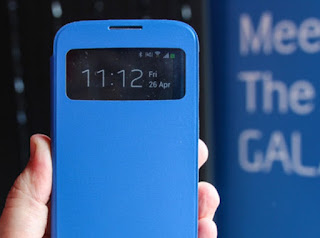
Samsung Galaxy S4 GT I9500 smartphone can now be updated with the XXUBMEA Jellybean 4.2.2 firmware. Though there is no official date on by Samsung will be rolling out this update worldwide, you can apply this update manually. Though there is no exact change log of this update, you can still go ahead and apply this update which we will be guiding you on how to apply. Before we proceed on to check on how you can apply with this release, proceed with the pre requisites first to the detailed instruction guide in the next page.
Quick Pre Requisites:
- All the data in your Samsung Galaxy S4 should be backed up with the help of below mentioned steps manually and not with the KIES PC Suite.
SMS – Use “SMS Backup & Restore app”,
Contacts – Sync with the Gmail application,
Call Log - Call Log and Restore
Images, Songs, Videos, Files – Copy to internal / External SD Card,
APN and MMS Settings – Note down from the path “Applications > Settings > Wireless and Network > Mobile Networks > Access Point Names”
- From the path “Settings > More > Development Options > USB debugging” enable the USB Debugging Mode.
- Minimum charge left in your phone is 30% or else there is a risk of device getting turned off in the middle of rooting process.
Disclaimer: Follow all the instructions mentioned in this article as if there is any damage caused due to not following instructions then we shall not be held liable or responsible. Just in case if you face any issues then we will try our level best to address the same.
Assuming that you are done with the above 3 pre requisites, you can now follow the list of instructions below for rooting your Galaxy S4.
Procedure to Update Galaxy S4 I9500 with XXUAMDL Jellybean 4.2.2 Firmware:
- Download the Jellybean 4.2.2 XXUBMEA Firmware Package and Odin from here to your computer. Once downloaded, extract both the files which you have downloaded in your computer. Open Odin in your computer.
- Turn Off your device so that it can be entered in the Download Mode. Download Mode in GALAXY S4 can be entered by first turning Off the device and then hold Volume Down Rocker Key + Menu Button and then Power ON the device. Once the device is booted and you see the Download Mode Green Robot, you can release the button combos.
- Connect your device to the computer with the help of original USB cable and then you will see that the ID : COM section will turn Yellow / Green, indicating that all the drivers are installed successfully.
- Click on “PDA” in odin to select the rooting tar file which will be there in the extracted folder to click on “Start” to start the process of rooting. Once the device is updated, the device will be rebooted automatically. It may take longer time than expected for booting the device. The whole process of firmware update might take anywhere between 10 -15 minutes depending upon various conditions.
- Don’t disconnect the device from computer till you see the home Lcd in your phone or the Language selection options.
Note: If the device gets into the boot loop sequence or say gets stuck in the welcome Lcd, just re insert the battery and re follow the above instructions so as to again follow the above mentioned instructions.
Do let us know in the comments section just in case if you face any issues in the process of firmware update in the comments section as we will try our level best to sort out the same. For all those who wishes to root their Samsung Galaxy S4 GT I9500 smartphones, we will be coming out with a separate tutorial which will help you root the device.
Sunday, September 14, 2014
Nokia C1 Charging no response Problem with Jumper Solution
Nokia C1 Charging no response.
![Nokia]()
ReadMore..

Saturday, September 13, 2014
Nokia C1 01 local mode test mode Problem with Jumper Solution
Nokia C1-01 local mode test mode solution.
![Nokia]()
ReadMore..

Saturday, September 6, 2014
How to Update Samsung Galaxy S Mini 3 Android KitKat With CM11
Android 4.4 is the latest version of the OS KitKat so many lovers of smartphones, android. Indeed, Googles OS as Developers always try to provide offers breakthrough - a breakthrough that makes mobile phone users with the Android OS always ask whats new?/ . However there is good news for all users of Samsung mobile phones, especially the Korean Samsung Galaxy S3 Mini, which now also got the experience of the latest OS - Android 4.4 KitKat.

Android update KitKat, Samsung Galaxy S3 Mini
How to update Samsung Galaxy S3 Mini to Android 4.4 Custom ROM KitKat
In fact, if the rumors are official or an official update for the Samsung Galaxy S3 Mini will be released in October next year (2014), but if you have to root and have installed the Custom Recovery on your smartphone, you can feel the current KitKat android degan using a Custom ROM - CyanogenMod 11. Well before you perform the installation I have to emphasize again to you if it would lead to a loss of (format) of data in the internal memory, so you should backup all the data you need is felt,
- Download CyanogenMod 11 for Samsung Galaxy S3 Mini click here
- Download Android 4.4 GAPPS for KitKat, click here
- Once you download , connect your phone to the PC and copy the files to the SD memory , beyond any folder .
- Connect off your mobile phone from the PC .
- Turn off your phone .
- Turn and go into Custom Recovery Mode by pressing Power + Home + Volume Up simultaneously.
- Release all buttons were after the Samsung logo appears .
- Select Wipe Data / Factory reset by using the volume up / bottom then ok ( home ) , wait until the process is complete then select Wipe Cache Partition and then Ok .
- Then select Advanced - > Wipe Dalvik Cache
- The final step is select " Install zip from sd card " , find the file you previously saved CyanogenMode to do an update once the flashing to your phone .
- After the install phase is complete do not forget to install GAPPS in the same manner with step 10 . then when youre done , please reboot your phone .
- done :D
Easy is not it?? Good luck, and you need to remember "this update only applies to the Samsung Galaxy S3 Mini is not for others .. Terimaksih for his cooperation I say thank you a lot ...
Wednesday, September 3, 2014

Monday, September 1, 2014

Thursday, August 28, 2014
Nokia 2690 Sim card not accepted Problem with Jumper Solution
Nokia 2690 Sim card not accepted solution.
![Nokia]()
ReadMore..


Tuesday, August 26, 2014
How to Flash Nokia 108 rm 944 With best Tool Guide 100 Tested

NOKIA 108 RM-944 MTK652A MB.
FLASH FILE
PASS : 01911178105HERE IS THE TOOL
work procedure
1. open the MULTITOOL
2. click Image Folder
FLASH FILE
PASS : 01911178105HERE IS THE TOOL
work procedure
1. open the MULTITOOL
2. click Image Folder

3. choose designation folder of ur flash file like (RM-944)

4. then popup will appear (LOAD FILE SUCCESS)

5. let u choose USB or FBUS (UART) pinouts.

6. then click start & connect ur phone it will be flash done 100000% MTK 625A.
PINOUTS
PINOUTS

Wednesday, August 20, 2014
Monday, August 18, 2014
Update Galaxy Grand Duos I9082 with Android 4 2 2 XXUBNA5 Jelly Bean Official Firmware

How to Update Galaxy Grand Duos I9082 with Android 4.2.2 XXUBNA5 Jelly Bean Official Firmware-Samsung Galaxy Grand with Dual SIM card slot also known as Galaxy Grand Duos (GT-I9082) has just received the latest Android 4.2.2 Jelly Bean update with firmware build number I9082XXUBNA5. The new official firmware is currently available as an Over-The-Air (OTA) update as well as through Samsung KIES.
Firmware details
- PDA: I9082XXUBNA5
- CSC: I9082OJVBNA2
- MODEM: I9082XXUBNA2
- Version: Android 4.2.2
- Build date: Jan 22, 2014
- Regions: Iraq, Algeria, Afghanistan, Egypt, Iran, Kenya, Morocco, Pakistan, Saudi Arabia, South Africa, Turkey, Tunisia, United Arab Emirates
Samsung Galaxy Grand Duos I9082 users who missed the OTA update notification or unable to access the update over Samsung KIES, can now download and install the same manually using our step-by-step guide.
Pre-requisites
1. Install USB Drivers for Samsung Galaxy Grand Duos on the computer.
2. Enable USB Debugging Mode on the phone by navigating to Settings >> Developer Options.
3. Make a backup of all your important data before following the guide.
4. The Galaxy Grand Duos should be factory unlocked and not locked to any particular carrier.
5. Ensure the battery of the phone is charged more than 80 percent.
6. The Android 4.2.2 XXUBNA5 Jelly Bean firmware is compatible only with the Galaxy Grand Duos (GT-I9082). Applying this to any incorrect variant might brick the device. Verify the model number of the Galaxy Grand Duos by navigating to Settings >> About Phone.
Files Required
1. Android 4.2.2 XXUBNA5 Jelly Bean Firmware (Mirror Link) for Galaxy Grand Duos I9082
Steps to Update Galaxy Grand Duos I9082 with Android 4.2.2 XXUBNA5 Jelly Bean Firmware
- Extract Firmware zip file using WinRAR/7-Zip/WinZip or any other extracting tool, you will get a .tar.md5 file and some other files (optional).
- Extract Odin zip file and you will get Odin3 v3.07.exe along with few other files.
Switch off the Galaxy Grand Duos. - Boot the device into Download Mode by pressing and holding Volume Down, Homeand Power buttons together until a construction Android robot icon with a warning triangle appears on screen. Now press the Volume Up button to enter Download Mode.
- Run Odin on the computer as an Administrator.
- Connect the Galaxy Grand Duos to the computer using USB cable while it is in the Download Mode. Wait until Odin detects the device. When the device is connected successfully, the ID: COM box will turn to light blue with the COM port number. Additionally, the successful connected will be indicated by a message saying Added.
Note: If the Added message does not appear, then try re-install USB drivers or changing the port on the computer.
- Select the following files in Odin from extracted I9082XXUBNA5 firmware folder:
- Click the PDA button and select the .tar.md5 file.
- Click the Phone button and select file with MODEM in its name. Ignore if there is no such file.
- Click the CSC button and select file with CSC in its name. Ignore if there is no such file.
- Click the PIT button and select the .pit file. Ignore if there is no such file.
- In Odin, enable Auto Reboot and F. Reset Time checkboxes. Also, ensure the Re-Partition checkbox is chosen only if a .pit file was chosen in the previous step.
- Verify everything suggested in Step 7 and Step 8 is done correctly. Then hit the Startbutton to begin the installation process.
- Once the installation process completes, your phone will restart and soon you will see a PASS message with green background in the left-most box at the very top of the Odin. You can now unplug the USB cable to disconnect your device from the computer.
Samsung Galaxy Grand Duos I9082 should be now updated with Android 4.2.2 XXUBNA5 Jelly Bean official firmware. Head over to Settings >> About Phone to verify the software version running on the device.
Note: If Galaxy Grand Duos I9082 stuck at booting animation after Step 10 then go to recovery mode (press and hold the Volume Up, Home and Power buttons together) and perform Wipe data/Factory Reset and Wipe Cache Partition task before selecting reboot system now function. In recovery mode use Volume keys to navigate between options and Power key to select the option. Please note, performing wiping task will erase your device internal memory data and not external SD card data.
Saturday, August 16, 2014

Thursday, August 14, 2014

Subscribe to:
Posts (Atom)
