Showing posts with label galaxy. Show all posts
Showing posts with label galaxy. Show all posts
Tuesday, November 18, 2014
Samsung Galaxy S3 Mini Value Edition GT I8200L How to Install I8200LUBUANB2 Android 4 2 2 Jelly Bean Firmware
How to Install Android 4.2.2 Jelly Bean Official Firmware on Galaxy S3 Mini I8200L through Odin:
ReadMore..
- Download Android 4.2.2 UBUANB2 Firmware for Galaxy S3 Mini I8200L from the above list
- Download Odin 3.09
- Switch off your phone and boot Galaxy S3 Mini I8200L into Download Mode by pressing and holding the Volume Down+Home+Power buttons (long press until the boot Lcd appear), now press Volume Up key to proceed to Download Mode.
- Extract the downloaded Odin3.09 zip file and run the Odin3 v3.09.exe file as an administrator (Right click on the .exe file and click on Run as administrator)
- Now connect your Galaxy S3 Mini I8200L to your computer via USB cable
- In Odin3 Lcd, you should see a COM Port number like “0:[COM7]” at ID:COM section and “Added!” text at the message box. This means your device has been detected by Odin3.
- Make sure that, only the “Auto Reboot” and “F. Reset Time” options are checked.
- Now, extract the downloaded firmware zip file, you’ll find a firmware file with extension .tar.md5
- In Odin Lcd, click on AP button and select the firmware file with .tar.md5 extension (The firmware file look something like: I8200LXXDLJ5_I8200LODDDLI7_INU.tar.md5)
- Now, click on the Start button to begin the installation process, wait few moments.
- Once completed, you would see “PASS!” message in ID:COM port having green background
- Your phone should automatically reboot after completion
- You can now disconnect your phone from computer

Wednesday, November 12, 2014
Samsung Galaxy S5 i9500 Hard Reset
Hard Reset:
Press and hold Volume UP + Home + Power Key Until Samsung logo Appear
Now you see android recovery logo
Now select Wipe data/factory reset and press power key to confirm
Now select Yes -- Delete all user data and press power key to confirm
Now reboot device
hard reset done
Hard Reset by code:
Enter dial no *2767*3855#
Now your handset show Factory Format
Wait for restart handset
hard reset done
ReadMore..
Press and hold Volume UP + Home + Power Key Until Samsung logo Appear
Now you see android recovery logo
Now select Wipe data/factory reset and press power key to confirm
Now select Yes -- Delete all user data and press power key to confirm
Now reboot device
hard reset done
Hard Reset by code:
Enter dial no *2767*3855#
Now your handset show Factory Format
Wait for restart handset
hard reset done
Friday, November 7, 2014
Hard Reset Samsung Galaxy S Dous 2 s7582
Hard Reset Samsung Galaxy S Dous 2 Gt-s7582
Today We Will Tell You How To Hard Reset Your Samsung S Dous 2 Using Phones Keys . You Can Use This Method To Reset Password , Pattern Lock or Pin Lock , Reset Security Lock. Also You Can Use This Method To Full Reset Your Phone .
- Switch Off Your Phone And Take Out Your Sim And SD Card
- Press And Hold Volume Up Key + Home Key And Power Key
- When Samsung Logo Release All Keys
- Now You Will see a Android Robot
- Press Right Option Key to Lounge Recovery Menu
- Select " Wipe Data / Factory Reset " Option By Using Volume Key . Press Power Key To Confirm
- Now Select " Yes ----- Delete All User Data " And Confirm
- Select Reboot Option And Wait
- Done !wipe data/factory reset
Wednesday, October 29, 2014
Samsung Galaxy Y Pro B5510 unlock pattern lock
Samsung Galaxy Y Pro B5510 unlock pattern lock
1.Power off your phone2.Press together volume up + home button + power button until Samsung logo appears
3,Select "wipe data" with volume buttons and press home button to confirm
4.Select "yes" and press home button to confirm
5.Wait untill format is complet
6.Select "reboot"
7.Wait until the phone restarts
Thats it!
Watch this Tutorial:
Saturday, October 25, 2014
How to Install the ClockworkMod Recovery for the Galaxy Tab P1000

The Samsung Galaxy Tab GT-P1000 is equipped with a 1 GHz Cortex A8 Hummingbird CPU, and 7″ 16M-color TFT LCD capacitive touchscreen of WSVGA (600 x 1024) pixel resolution, is not a place XL, but the Tab makes the S in Galaxy S meaningful. In a big view: is a Galaxy S with 3 inch added to the size of the screen and 2 MG pixels taken out from the camera.
The update for your operating system on your tablet can be made it official or with the custom ROMs.
The upgrading make your device to faster on operating system this thing make us want a custom ROMs, and when we want to take a custom ROMs in our devices, we cannot flashing them without a custom recovery installed in our tablet. ClockworkMod Recovery is a powerful possibility to make this thing. Via Technomancer’s kernel can be installed an easy modality to flash custom recovery on your Samsung Galaxy Tab.
Note: Your tablet should and must be running on stock Android 2.3 Gingerbread before you can go on with the process.
The upgrading make your device to faster on operating system this thing make us want a custom ROMs, and when we want to take a custom ROMs in our devices, we cannot flashing them without a custom recovery installed in our tablet. ClockworkMod Recovery is a powerful possibility to make this thing. Via Technomancer’s kernel can be installed an easy modality to flash custom recovery on your Samsung Galaxy Tab.
Note: Your tablet should and must be running on stock Android 2.3 Gingerbread before you can go on with the process.
Warning:
- This guide will be applied only if your device is Samsung Galaxy Tab, model number GT-P1000. If you’ll, applying on another model you can produce undesired consequences.
- Use all information from this guide for instructional and educational purpose only.
- There is no guarantee that these instructions will work under your particular and unique circumstances.
- Use all this instruction only at your own risk, Is not our responsibility or liability for whatever happens to you or with your device if you’ll apply this instruction on it.
Read all instructions first and understand the information from this guide before performing this guide.
This guide shows you:
This guide shows you:
How to flash ClockworkMod Recovery for the Galaxy Tab P1000.
For this guide, we need the next Requirements:
- Samsung Galaxy Tab GT-P1000 device which running on stock Android 2.3 Gingerbread
- A personal PC with Windows Operating System
- Your original USB cable for your tablet
- A software/program that can extract TAR archive files(7-Zip, WinRAR)
On your computer, download the following files:
Technomancer’s Kernel with ClockworkMod Recovery 5 (cwm-5-p1.tar, 5 MB, md5sum: e67e61a27741069e43bf9f790bf35b10)
Heimdall Suite 1.3.2 (heimdall-suite-1.3.2-win32-.zip, 9.6 MB)
Heimdall Suite requires Microsoft C++ Redistributable installed on your computer it to run.
The tablet’s battery must be charged up to 80%, don’t have interruptions during the process.
First of all, backup the tablet data stored on your tablet, to asure yourself with a copy of your personal data, If not you can lose your messages, contacts, Market apps and so on.
For example use Titanium Backup or the Astro File Manager.
For performing a full backup you can follow our previous guides:
Download SMS backup and restore apps for Android.
Download call log backup and restore apps.
Sync contacts with Gmail account.
- Extract the archive Heimdall Suite 1.3.2 in the folder named Heimdall Suite.(drivers and the Heimdall Suite application)
- Now connect your original USB cable to the PC.( don’t connect yet the tablet device)
- Switch off your tablet.
- For this step reboot the tablet into Download Mode. For this operation should press and hold in the same time the power button and volume Down button as you connect the other end of the USB cable to your tablet.
- Go on your Windows PC and double-click the zadig.exe File located on the Heimdall Suite folder; this Application allows you to install the USB drivers in an easy way, drivers needed for Heimdall to establishing a connection with your tablet device.
- Now going to select Option and now choose from the menu: List All Devices.
- Now you will see a drop down list, and in this drop down list select either Samsung USB Composite Device or Gadget Serial, and now choose Install Driver. Heimdall can now use your computer safely.
- Note: If a prompt appear with the “that the installer is unable to verify the publisher of the driver” message, select “Install this driver anyway.”
- After the driver installation is done, unplug your tablet device from the USB cable.
- Power off your tablet device.
- Reboot the device into Download Mode like as in step 4 described above.
- Now going to Untar Technomancer’s Kernel. To obtain zImage file. Copy this zImage file into the Heimdall Suite folder. The zImage file should be inside in the same location/folder with heimdall.exe File.
- For this step you should open a command prompt on your PC. Now you should change directory to where heimdall.exe it is.
- In command prompt enter the following line command:
heimdall flash –kernel zImage
This command instructs Heimdall to flash your tablet. A blue transfer bar will appear on the tablet showing the kernel being transferred.
The Tablet device will reboot automatically.
Finally, the Samsung Galaxy Tab device now has the ClockworkMod Recovery installed.
Let us know if the custom recovery working well for you, please use the comment section.
Thursday, September 25, 2014
JellyBean 4 1 0 For Galaxy Y
Want to get Android 4.1 Jelly Bean taste on your Galaxy Y? Yes, of course you can. Find out details after the jump!Thanks to S5360 custom ROM for Android 4.1 Jelly bean, now you can update your Galaxy Y to Android 4.1. In this post you will learn how to update your Samsung Galaxy Y to Android 4.1 Jelly Bean using S5360 custom ROM. Before you proceed, you will need to have fulfilled following requirements:
Step 2) Connect your Galaxy Y USB to your computer using the USB cable.
Step 3) Copy the downloaded file to your SD card.
Step 4) Turn off your phone and then turn it in again in the recovery mode by pressing and holding the Volume UP + Home Button + Power Key buttons.
Step 5) Now you will see exclamation mark on your phone Lcd. Again hold your volume up and power buttons. Now your Galaxy Y is in recovery mode.
Step 6) Once your smartphone is in ClockworkMod recovery, you are ready to perform a Nandroid backup of your existing ROM. For that you will need to select Backup and Restore option followed by selecting Backup again in next windows. Once the backup is completed, you are ready to go back to main recovery menu.
Step 7) Now you will need to wipe the previous ROM first. For that select Wipe data/factory reset option and select Yes to confirm the action.

Step 7) Now select Install zip from sdcard and then select choose zip from sdcard.
Step 8) Navigate to Custom ROM file we have just uploaded to SD card in step 3 and select it using power button. Confirm the installation on the next Lcd and the installation procedure should start now.
Step 9) Once installation is completed, go back to main recovery menu and select Reboot System Now.
Recommended: Before rebooting your phone from CWM Recovery, go to CWM Recovery main menu and select Wipe Data Cache under Advance option to perform the Data cache wiping.
- You have to install your Galaxy Y USB Drivers on your PC.
- You need to enable USB debugging mode which is deactivated by default.
- You smartphone should have minimum 80% charge remaining.
- Your Galaxy Y should be Rooted.
- This guide is only meant for Galaxy Y GT-S5360, dont try it on other variants of Galaxy Y. You can check your Galaxy Y version in Settings –> About phone.
- Last but not least, backup your important data like Call logs, SMS and other data in stored in phone memory so in case if anything goes wrong, your data is not hurt.
How to Install Android 4.1 Jelly Bean Custom ROM on Galaxy Y
Step 1) DOWNLOAD Android 4.1 Jelly Bean Custom ROM for Galaxy Y.Step 2) Connect your Galaxy Y USB to your computer using the USB cable.
Step 3) Copy the downloaded file to your SD card.
Step 4) Turn off your phone and then turn it in again in the recovery mode by pressing and holding the Volume UP + Home Button + Power Key buttons.
Step 5) Now you will see exclamation mark on your phone Lcd. Again hold your volume up and power buttons. Now your Galaxy Y is in recovery mode.
Step 6) Once your smartphone is in ClockworkMod recovery, you are ready to perform a Nandroid backup of your existing ROM. For that you will need to select Backup and Restore option followed by selecting Backup again in next windows. Once the backup is completed, you are ready to go back to main recovery menu.
Step 7) Now you will need to wipe the previous ROM first. For that select Wipe data/factory reset option and select Yes to confirm the action.
Step 7) Now select Install zip from sdcard and then select choose zip from sdcard.
Step 8) Navigate to Custom ROM file we have just uploaded to SD card in step 3 and select it using power button. Confirm the installation on the next Lcd and the installation procedure should start now.
Step 9) Once installation is completed, go back to main recovery menu and select Reboot System Now.
Recommended: Before rebooting your phone from CWM Recovery, go to CWM Recovery main menu and select Wipe Data Cache under Advance option to perform the Data cache wiping.
Tuesday, September 23, 2014
Update Galaxy Note 8 0 N5100 with XXBMF1 Jelly Bean 4 1 2 Firmware
Galaxy Note 8.0 N5100 can now be updated with the Official Android 4.1.2 XXBMF1 Jelly Bean Firmware which comes with the added stability and bug fixes. Just in case if you still haven’t got the update of this firmware, you can now manually update the same. The best part of this update is that this is the Official firmware and not the beta or custom ROM firmware. Before we proceed to check on what are the instructions to apply with this firmware, you will need to follow the list of pre requisites which we have mentioned below.

Note: Applying with this firmware won’t root / void the warranty in any manner.
Quick Pre Requisites:
- Create a backup of all your data with the help of below mentioned steps. Though, you can back up the data with KIES as well, we recommend you to backup manually with the help of below mentioned steps as sometimes KIES refuses to detect the device.
SMS – Use “SMS Backup & Restore app”,
Contacts – Sync with the Gmail application,
Call Log - Call Log and Restore
Images, Songs, Videos, Files – Copy to internal / External SD Card,
APN and MMS Settings – Note down from the path “Applications > Settings > Wireless and Network > Mobile Networks > Access Point Names”
- From the path “Settings > Development Options > USB debugging” enable the USB Debugging Mode. Minimum charge left in your phone is 30% or else there is a risk of device getting turned off in the middle of rooting process.
Disclaimer: Follow all the instructions mentioned in this article as if there is any damage caused due to not following instructions then we shall not be held liable or responsible. Just in case if you face any issues then we will try our level best to address the same.
Assuming that you are done with all the above mentioned steps, you can now proceed to the next page where we have mentioned the detailed guide on how to apply with this firmware update.
Procedure to Update Galaxy Note 8.0 N5100 with Jellybean 4.1.2 Firmware:
- Download the Jellybean 4.1.2 Firmware Package and Odin from here to your computer. Once downloaded, extract both the files in your computer and open Odin in your computer.
- Open Odin in your computer. Download Mode in Galaxy Note 8.0 can be entered by first turning Off the device and then hold Volume Down Rocker Key + Menu Button and then Power ON the device. Once the device is booted and you see the Download Mode Green Robot, you can release the button combos.
- Connect your device to the computer with the help of original USB cable and then you will see that the ID : COM section will turn Yellow / Green, indicating that all the drivers are installed successfully.
- Click on “PDA” to select the tar file which you got from the firmware package which is the TAR File which you got after extracting the file from the first step.
- Once all the file is selected, click on “Start” to start the process of firmware update. Once the firmware update process is completed which will be mentioned in the ODIN, the Galaxy S2 device will be rebooted.
- For firmware update to be finished, it will take around 2-3 minutes for applying the update. Once the device is updated successfully, the device will be rebooted. As soon as you see the Language preferences or the Home Screen, you need to disconnect the device from computer and enjoy using your phone.
Note: If the device gets into the boot loop sequence or say gets stuck in the welcome Lcd, just re insert the battery and re follow the above instructions so as to again follow the above mentioned instructions.
Do let us know in the comments section just in case if you face any issues in the process of firmware update in the comments section as we will try our level best to sort out the same.
Samsung Galaxy S i9000 All Keypad Not Working Solution

How To Easy Root Galaxy Tab 7 7 P6800 P6810 Running On Android 3 2 Honeycomb
Root Samsung Galaxy Tab 7.7 GT-P6800/GT-P6810 easy you can now easily eradicate your GT-P6800/GT-P6810 Galaxy Tab 7.7 running on the latest official firmware. without using a PC but only use a mobile device to install an application and follow the steps very simple.
Once you rooting Galaxy Tab 7.7 GT-P6800/GT-P6810 you really can take advantage of hardware as you want. Such as install root only apps, and can access and modify the file system, can even upgrade to a better version of Android such as Android 4.3 or Android 4.4 Jelly Bean KitKat with flashing custom ROM (if there is available and) if you have a custom recovery installed . You can follow the simple instructions to find and install a custom recovery (CWM recovery or TWRP recovery) on your device.

Disclaimer: This guide is for educational purpose only. Neither True-Android team nor any developers are responsible if your device bricked after following this tutorial. Remember, rooting void your device manufacturer warranty.
Pre Requisites:
1. Backup your device data.
2. Make sure your device have at least 60% battery power. You can install an app like Battery Notifier BT Free on your Android device to check it easily.
Hope you back up all your data and settings as mentioned above. So, its time to jump into next stage of this guide.
How To Root Galaxy Tab 7.7 GT-P6800/GT-P6810 Easily
- Download Framaroot and install it (open a file explorer, navigate your download and tap on it; you can also directly open the apk from browser download section to install it). If you see a warning box then you require to check Unknown sources under Settings –> Security.
- Open the app and then tap on install superuser or super SU of your choice.
- You will see some rooting options. Tap on any of the available rooting method and soon youll see the success message.
To confirm if you successfully rooted your Android device or not install an app called “Root Checker” which is available for free from Google PLAY store.
That’s it! You just learn how to root Galaxy Tab 7.7 GT-P6800/GT-P6810. And, that’s too without using any computer. You can fill the comment form below to ask additional help from community.
Monday, September 22, 2014
Simplicity Rom Ported from Galaxy Ace to Samsung Galaxy Y GT S5360
I am here with the Simplicity Rom for Samsung Galaxy y Users[GT-S5360]
Build 1
Fixed bluetooth
Fixed camera
Changed boot animation
Added Viper (see FAQ)
Changed tweaks
Added some apps
Removed bloat
Updated Playstore to 3.10.14


Feautures found Over:-
1. added jelly bean layout
2. 14 Toggles
3. added jelly bean usb mount/unmount
4. Voice Search
5. Touchwizz
6. added extended power menu
7. removed unnecessary mods,apps
8. ninesky browser
9. added jelly bean styled phone calling mode
10. battery charging bug removed [while switch off ]
11. battery bug removed while charging[ when switch on]
12. some ui changes + more smoothness.....
13. No kernel integrated
14. S3 themed!
2. 14 Toggles
3. added jelly bean usb mount/unmount
4. Voice Search
5. Touchwizz
6. added extended power menu
7. removed unnecessary mods,apps
8. ninesky browser
9. added jelly bean styled phone calling mode
10. battery charging bug removed [while switch off ]
11. battery bug removed while charging[ when switch on]
12. some ui changes + more smoothness.....
13. No kernel integrated
14. S3 themed!
Changes from Original Port:-
Build 1
Fixed bluetooth
Fixed camera
Changed boot animation
Added Viper (see FAQ)
Changed tweaks
Added some apps
Removed bloat
Updated Playstore to 3.10.14
HOW TO FLAST THE ROM:-
[So Here am I with for the one You waiting For and Scrolling too.. Now Ill give u a perfect Way to Flash this Custom Rom... You would be Thinking this one Would be as Same as the one which Normally others are but not Like it Now.!! This One is Quite Different from Others.]
[First of All you Require to Root Your Device to avoid administrational setting.. If you dont know to Root CLICK HERE!!! If you have already Rooted.. Proceed Further]
1.Copy the the Simplicity.zip files to your SD card. [Note:- Not In Any Folder]
2. Turn off your phone and boot to Recovery Mod by pressing these buttons: volume up+home+power button. In Recovery you cant use the touch Lcd ..Can Operate only the buttons.
2. Turn off your phone and boot to Recovery Mod by pressing these buttons: volume up+home+power button. In Recovery you cant use the touch Lcd ..Can Operate only the buttons.
Volume up: Navigating UP
Volume down: Navigating Down
Home: Enter
Power: Back
3. Navigate through Volume Up and Down:-
Volume down: Navigating Down
Home: Enter
Power: Back
3. Navigate through Volume Up and Down:-
i. Factory Data Reset
ii. Clear Cache Partition 4. After data wipe move to install zip from SD Card, then choose Update from SD and navigate toSimplicity.zip andPress the Home Button5. Wait until the installation ends.6. The first boot can take a long time.
7. After Phone Gets Switched On.. complete the Formalities asked by the Phone. and Now you are with the one of the Latest and Fastest custom Rom For Samsung Galaxy Y which no one could ever Dream Of Too...
How To Android 4 4 2 KitKat Avatar ROM For AT T Galaxy Captivate SGH I897
It’s time to update your AT&T Galaxy Captivate SGH-I897 to latest and customized Android 4.4.2 KitKat with the help of custom firmware Avatar 5.0.4. It’s really good idea to have a customized AOSP based ROM instead of having pure AOSP ROM. Avatar 5.0.4 is based on latest Android 4.4.2 KitKat and build using CM11 source. The ROM mainly known for its extensive theme engine that it adopt from MIUI ROM. Its easy to download many cool looking free themes and change your phone look instantly. You can download and install custom firmware Avatar 5.0.4 on your AT&T Galaxy Captivate SGH-I897. Since, AT&T Galaxy Captivate SGH-I897 is capable enough to run Android 4.4.2 KitKat smoothly, Avatar 5.0.4 going to be a great experience for you. To learn how to flash this ROM, continue reading this guide to know how to install Android 4.4.2 KitKat based Avatar 5.0.4 custom ROM on AT&T Galaxy Captivate SGH-I897.
Related Readings:Install TWRP Recovery 2.6.3.7 on Galaxy Note 3 SM-N900 / SM-N9005 - How To Guide
Some of the cool Android 4.4.2 KitKat features that you will enjoy is Screen Recording, Tap to Pay (Google Wallet for everyone), NFC emulation for non nfc devices, 14% less memory usage, cloud printing from Gallery, Google Home is the new Launcher, Core System Processes Trimmed, apps are efficient and responsive on all devices, the all new procstats tool details memory use, Full-Lcd Immersive mode, seamless change in resolution during media playback, Phone dialer got local business detection, redesigned Quickoffice and many more.
As said already, this is a test build and you should expect some bugs in it. All bugs and issues expected to be fixed as development progress towards a better build.
![Android]()
Warning!
This tutorial is only for AT&T Galaxy Captivate SGH-I897. Don’t try this guide on any other Android device. Also, we (True Android Team) are not responsible for any damage caused due to the instruction given in this page. Try this at your own risk. However, it is very unlikely that your device will be damaged if you follow all the instructions as it is which are mentioned in procedure.
Pre Requisites:
1. Backup your device data. You can follow our ultimate backup guide
2. Make sure your device have at least 60% battery power. You can install an app like Battery Notifier BT Free on your Android device to check it easily.
3. You already have USB Driver Installed for AT&T Galaxy Captivate SGH-I897 in your PC. [Download USB Drivers]
4. Make sure USB Debugging is enabled otherwise you won’t able to transfer file between PC and AT&T Galaxy Captivate SGH-I897. [Guide]
5. Your device have latest CWM version 6.0.4.4 and up or TWRP 2.6.3.0 and up installed.[Guide]
If you done everything that we mentioned above then you are ready to follow step-by-step guide on how to install Android 4.4.2 KitKat based Avatar 5.0.4 ROM on AT&T Galaxy Captivate SGH-I897. In below tutorial we discussed the process assuming your device a non-touch recovery; you can complete the process using touch if applicable.
File Required(Download by clicking on it)
ReadMore..
Related Readings:Install TWRP Recovery 2.6.3.7 on Galaxy Note 3 SM-N900 / SM-N9005 - How To Guide
Some of the cool Android 4.4.2 KitKat features that you will enjoy is Screen Recording, Tap to Pay (Google Wallet for everyone), NFC emulation for non nfc devices, 14% less memory usage, cloud printing from Gallery, Google Home is the new Launcher, Core System Processes Trimmed, apps are efficient and responsive on all devices, the all new procstats tool details memory use, Full-Lcd Immersive mode, seamless change in resolution during media playback, Phone dialer got local business detection, redesigned Quickoffice and many more.
As said already, this is a test build and you should expect some bugs in it. All bugs and issues expected to be fixed as development progress towards a better build.
Warning!
This tutorial is only for AT&T Galaxy Captivate SGH-I897. Don’t try this guide on any other Android device. Also, we (True Android Team) are not responsible for any damage caused due to the instruction given in this page. Try this at your own risk. However, it is very unlikely that your device will be damaged if you follow all the instructions as it is which are mentioned in procedure.
Pre Requisites:
1. Backup your device data. You can follow our ultimate backup guide
2. Make sure your device have at least 60% battery power. You can install an app like Battery Notifier BT Free on your Android device to check it easily.
3. You already have USB Driver Installed for AT&T Galaxy Captivate SGH-I897 in your PC. [Download USB Drivers]
4. Make sure USB Debugging is enabled otherwise you won’t able to transfer file between PC and AT&T Galaxy Captivate SGH-I897. [Guide]
5. Your device have latest CWM version 6.0.4.4 and up or TWRP 2.6.3.0 and up installed.[Guide]
If you done everything that we mentioned above then you are ready to follow step-by-step guide on how to install Android 4.4.2 KitKat based Avatar 5.0.4 ROM on AT&T Galaxy Captivate SGH-I897. In below tutorial we discussed the process assuming your device a non-touch recovery; you can complete the process using touch if applicable.
File Required(Download by clicking on it)
- Avatar 5.0.4 For AT&T Galaxy Captivate SGH-I897 [Filename: avatar-5.0.4-NIGHTLY-20140124-captivatemtd.zip]
- Google Apps [Filename: gapps-kk-20131119.zip] or any other 4.4 KitKat GApps
How to Install Android 4.4.2 KitKat based Avatar 5.0.4 ROM on AT&T Galaxy Captivate SGH-I897
- Connect your device to PC using USB cable and then copy downloaded files to the SD card of your device. Important: Don’t extract any files.
- Disconnect USB and then turn off your AT&T Galaxy Captivate SGH-I897.
- Now, boot into ClockworkMod recovery by pressing and holding the Volume Up, Volume Down and Power buttons together until the Samsung logo comes up, leave all three buttons. You will see ClockworkMod recovery Lcd soon. Use Volume keys to browse between options in recovery while Power key to select an option. Alternatively try this:Recovery Mode without Key Combination.
- Perform a Nandroid backup of your existing ROM that you can restore later if this new ROM not work or you want to go back into your previous ROM. To perform a backup, select Backup and Restore, then on the next Lcd, select Backup again. Go back to main recovery menu after backup is complete.
- Now, perform data wiping task. To do so, select wipe data/factory reset, then select Yes on next Lcd to confirm your action. Wait few minutes till the data wipe is complete. Now come back to CWM recovery main menu. Select wipe cache partition and after wiping process done, select Wipe Dalvik Cache under advance option to perform Dalvik cache wiping.
- Select install zip from sdcard, then select choose zip from sdcard (or /sdcard1 for external storage). Now, locate the Avatar 5.0.4 Zip file that you copied earlier in Step 1 and select it by pressing Power button. Confirm installation by selecting Yes – Install _____.zip on the next Lcd. The ROM installation will begin.
- Once the ROM installation process end, repeat the step 6 but choose the gapps-kk-20131119.zip file instead of ROM zip to install the Google apps package.
- When installation is completed, go back to the main recovery menu and select reboot system now to reboot your AT&T Galaxy Captivate SGH-I897 and boot up into Android 4.4.2 KitKat ROM Avatar 5.0.4.
- Returning to Previous ROM: To go back to your previous ROM, boot into recovery, select backup and restore then restore your previous ROM by selecting it from the list.
- Connect your device to PC using USB cable and then copy downloaded files to the SD card of your device. Important: Don’t extract any files.
- Disconnect USB and then turn off your AT&T Galaxy Captivate SGH-I897.
- Now, boot into TWRP recovery by pressing and holding the Volume Up, Volume Down and Power buttons together until the Samsung logo comes up, leave all three buttons. You will see TWRP recovery Lcd soon. Alternatively try this:Recovery Mode without Key Combination.
- Create a Backup using TWRP Backup Option.
- Perform a Factory Reset (this will delete all apps and their settings and game progress). To do this, Tap on Wipe, then at the bottom of the Lcd do a Swipe on the ‘Swipe to factory reset‘ option.
- Now its time to add zip file for flashing. Tap on Install, then browse to the location where you saved the files and tap on the Avatar 5.0.4 Zip file. Then tap on Add More Zips, and add gapps-kk-20131119.zip. Now at the bottom of the Lcd, do a swipe on the Swipe to confirm flash option to begin flashing.
- When installation is completed, go back to the main recovery menu and tap on Reboot and then, tap on System to reboot your AT&T Galaxy Captivate SGH-I897 and boot up into Android 4.4.2 KitKat ROM Avatar 5.0.4.
- Returning to Previous ROM: To go back to your previous ROM, boot into recovery, select Backup then through Restore option, restore your previous ROM by selecting it from the list.
Sunday, September 21, 2014
How To Root Easily I317MUMUCNA1 Android 4 3 Firmware Running on Galaxy Note 2 SGH I317M Canada Guide
Samsung Galaxy Note 2 SGH-I317M (Canada) recently get updated to the I317MUMUCNA1 4.3 Jelly Bean Firmware. If you yet to update the firmware, then update the same by following the above link. Hope you updated this latest firmware on your device and now you can root the same using our simple tutorial below. The below guide will help you to root UMUCNA1 4.3 Jelly Bean Firmware running on Galaxy Note 2 SGH-I317M. Continue reading the tutorial for complete guide.
After updating official firmware, your device no longer belongs to rooted device. So, after official firmware update, many of us prefer to root our device to enjoy some additional features that unrooted android device doesnt offer. With a rooted android device, you can install apps that ask root permission, flash various custom ROMs, install MODs and tweak various features. Root removes default bloatware apps that free-up lots of memory space and extend the battery life. However, once rooted, manufacturer warranty will be void. But you can regain the warranty by following proper unroot process. To know more about benefits of rooting android device, read- Complete Note on What is Rooting and Benefits of Rooting Android Phone.
![I317MUMUCNA1]() So, want to root Galaxy Note 2 SGH-I317M Running I317MUMUCNA1 4.3 Jelly Bean Firmware? Continue reading this page to get all the necessary steps to successfully root your device. The root file (CF-Auto-Root) we used in this tutorial is safe and have nearly 100% success rate. Well use Odin software to flash the root file.
So, want to root Galaxy Note 2 SGH-I317M Running I317MUMUCNA1 4.3 Jelly Bean Firmware? Continue reading this page to get all the necessary steps to successfully root your device. The root file (CF-Auto-Root) we used in this tutorial is safe and have nearly 100% success rate. Well use Odin software to flash the root file.
The tutorial is made with simple step by step guide, so that even an android newbie user can follow and successfully root his/her device. However, in this process you may loss your personal data and settings. So, we recommend you to follow all the backup instructions before proceed to rooting guide.

After updating official firmware, your device no longer belongs to rooted device. So, after official firmware update, many of us prefer to root our device to enjoy some additional features that unrooted android device doesnt offer. With a rooted android device, you can install apps that ask root permission, flash various custom ROMs, install MODs and tweak various features. Root removes default bloatware apps that free-up lots of memory space and extend the battery life. However, once rooted, manufacturer warranty will be void. But you can regain the warranty by following proper unroot process. To know more about benefits of rooting android device, read- Complete Note on What is Rooting and Benefits of Rooting Android Phone.

The tutorial is made with simple step by step guide, so that even an android newbie user can follow and successfully root his/her device. However, in this process you may loss your personal data and settings. So, we recommend you to follow all the backup instructions before proceed to rooting guide.
All the above pre-requisites are very important and must be followed before proceed to installation guide. Hope you get all the above points and done as mentioned. Now, you are ready to move to the final step of this tutorial where we have arranged a step by step details guide to root Galaxy Note 2 SGH-I317M running I317MUMUCNA1 4.3 Jelly Bean firmware.
Steps to Root Galaxy Note 2 SGH-I317M Running I317MUMUCNA1 4.3 Jelly Bean through Odin:
- Download CF-Auto-Root for Galaxy Note 2 I317M and extract the Zip file: CF-Auto-Root-t0ltecan-t0ltevl-sghi317m.zip
- Download Odin 3.09 and extract the Zip file: Odin3_V3.09.Zip
- Now, Switch off your phone and boot Galaxy Note 2 I317M into Download Mode by pressing and holding the Volume Down+Home+Power buttons together (long press until the boot Lcd appear), now press Volume Up key to proceed to Download Mode.
- Run the Odin3 v3.09.exe file as an administrator (Right click on the .exe file and click on Run as administrator)
- Now connect your Galaxy Note 2 I317M to your computer via USB cable
- In Odin3 Lcd, you should see a COM Port number like “0:[COM7]” at ID:COM section and “Added!” text at the message box. This means your device has been detected by Odin3.
- Make sure that, only the “Auto Reboot” and “F. Reset Time” options are checked.
- Now, click on the PDA button and select the CF-Auto-Root-t0ltecan-t0ltevl-sghi317m.tar.md5 file.
- Finally, click on the Start button to begin the rooting process, wait few moments.
- Once completed, you would see “PASS!” message in ID:COM port having green background
- Your phone should automatically reboot after completion
- You can now disconnect your phone from computer
- Finish
Galaxy Notes N7000 Repair Imei OK
Quote:
Welcome to Octopus Box Samsung software version 1.2.8-----------------------------------------------------------------------------------
To connect GT-N7000 phone you have to perform the following steps:
1. Disconnect USB cable from phone.
2. Go to Menu->Settings->Applications->Development.
3. Turn on "USB Debugging" option.
4. When message is appear press "Yes".
5. Go to dial window.
6. Enter "*#7284#" number.
7. Set "USB" radio button to "PDA" value.
8. Close window.
9. Go to dial window.
10. Enter "*#9090#" number.
11. Set "Diag config" to "USB" value.
12. Restart phone.
13. Press "Read Info" in Octopus Samsung software.
-----------------------------------------------------------------------------------
Platform: Samsung Anycall
Selected port: COM1
Selected model: GT-N7000
Phone was not found on the selected port!
Searching for USB diagnostic port...
Connecting to phone on COM169
-----------------------------------------------------------------------------------
Platform: Samsung Anycall
Selected port: COM169
Selected model: GT-I5500
Detected phone model:
HW Version: XXXXXXXXXXXXXX
Phone model is not supported
Mode: Normal
Phone model:
Phone model is not supported
Phone was not found on the selected port!
Searching for USB diagnostic port...
Connecting to phone on COM169
Detected phone model: GT-N7000
HW Version: XXXXXXXXXXXXXX
Phone IMEI: 004999-01-064000-0
Firmware compiled date: Tue Dec 20 20:22:15 KST 2011
Android version: 2.3.6 (GINGERBREAD)
Phone IMEI: 004999010640000
-----------------------------------------------------------------------------------
Platform: Samsung Anycall
Selected port: COM169
Selected model: GT-N7000
Detected phone model: GT-N7000
HW Version: XXXXXXXXXXXXXX
Phone IMEI: 004999-01-064000-0
Firmware compiled date: Tue Dec 20 20:22:15 KST 2011
Android version: 2.3.6 (GINGERBREAD)
Phone IMEI: 004999010640000
-----------------------------------------------------------------------------------
Platform: Samsung Anycall
Selected port: COM169
Selected model: GT-N7000
Detected phone model: GT-N7000
HW Version: XXXXXXXXXXXXXX
Firmware compiled date: Tue Dec 20 20:22:15 KST 2011
Android version: 2.3.6 (GINGERBREAD)
Phone IMEI: 004999010640000
Old IMEI: 004999-01-064000-0
New IMEI: 359616-04-863474-5
Writing new IMEI. Please wait...
New IMEI successfully writed.
Please, restart phone to apply changes
Link
Saturday, September 20, 2014
Latest EXAM 2 4 1 2 JB Official ROM Update for Galaxy Young GT S6310
Samsung Galaxy GT-S6310 Young received a new official firmware update DXAMI2 Android Jelly Bean 4.1.2 firmware. Samsung has just released an OTA update of the firmware. S6310DXAMI2 latest firmware build version. The Galaxy Young was released in February of this year with Android 4.1.2 Jelly Bean. Samsung has not released the Android 4.2.2 version of android Jelly Bean or more for the device. If you already have the tools and the latest firmware is not updated, the latest firmware update using our simple tutorial below. You can check the latest available firmware for your device via OTA (over the air) from Settings-About Phone-Software Update.

Because Young Galaxy has been running on Android 4.1.2 Jelly Bean, you can only expect a slight bug fixes and performance enhancements with this update. So, want to update to the latest S6310 Young Galaxy DXAMI2 Jelly Bean Android 4.1.2 firmware? To install the official way, either you can go for the OTA update as mentioned above or download the firmware via Samsung Kies utility. However, most of us prefer the manual way to update the official firmware. So, in this article you will enjoy the step-by-step user guide for the Android 4.1.2 update DXAMI2 latest firmware on your Galaxy Young S6310 via Odin.
Important Note:
"The firmware is released only for the Samsung Galaxy Young GT-S6310 model, so don’t try this in any other android device. Check your device model number from Settings-About Phone. Also the tutorial is based on Youngdows PC. Follow all the pre-requisites, procedures and steps carefully to avoid breaking your phone".
Android 4.1.2 Jelly Bean S6310DXAMI2 Official Firmware Download List
Samsung rolled out the firmware for the following countries. The firmware which are unbranded or not locked to any carrier, no matter of which country or region, can be flashed on any Galaxy Young GT-S6310 model.
- Malaysia: S6310DXAMI2_S6310OLBAMI2_XME.zip
- Vietnam: S6310DXAMI2_S6310OLBAMI2_XXV.zip
[Firmware for rest of the countries and carrier will be added here when available]
Pre-Requisites:
- Check battery percentage, your device should have at least 60% battery power
- Turn on USB Debugging mode, go to Settings-Developer Options-USB Debugging
- Backup important data and settings to external storage- follow this guide
- Install USB driver for your device on your computer- Download Samsung USB Driver
Points to be Noted:
- If you are using any Custom ROM such as- CyanogenMod, Paranoid Android, AOKP, SLIM ROMs etc, then it’ll replaced by this official Stock ROM
- Custom Recovery (CWM or TWRP Recovery) will be replaced by Stock Recovery
- After flashing official firmware, your device will no longer belongs to rooted device. However you can root your device any time after flashing the firmware.
All the above pre-requisites are very important and must follow before proceed to installation guide. Hope you get all the above points. Now, go through the below tutorial to install Android 4.1.2 S6310DXAMI2 official firmware on Galaxy Young S6310.
How to Install Android 4.1.2 Jelly Bean Official Firmware on Galaxy Young S6310 through Odin:

- Download Android 4.1.2 DXAMI2 Firmware for Galaxy Young S6310 from the above list
- Download Odin 3.07
- Switch off your phone and boot Galaxy Young S6310 into Download Mode by pressing and holding the Volume Down+Home+Power buttons (long press until the boot Lcd appear), now press Volume Up key to proceed to Download Mode.
- Extract the downloaded Odin3.07 zip file and run the Odin3 v3.07.exe file as an administrator (Right click on the .exe file and click on Run as administrator)
- Now connect your Galaxy Young S6310 to your computer via USB cable
- In Odin3 Lcd, you should see a COM Port number like “0:[COM7]” at ID:COM section and “Added!” text at the message box. This means your device has been detected by Odin3.
- Make sure that, only the “Auto Reboot” and “F. Reset Time” options are checked.
- Now, extract the downloaded firmware zip file, you’ll find a firmware file with extension.tar.md5
- In Odin Lcd, click on PDA button and select the firmware file with .tar.md5 extension(The firmware file look something like: S6310XXDLJ5_S6310ODDDLI7_INU.tar.md5)
- Now, click on the Start button to begin the installation process, wait few moments.
- Once completed, you would see “PASS!” message in ID:COM port having green background
- Your phone should automatically reboot after completion
- You can now disconnect your phone from computer
- Finish
Congrats! you complete the tutorial for Android 4.1.2 official firmware update Jelly Bean on the GT-S6310 Galaxy young. Hope you managed to do the update process. If youve followed everything in the tutorial as mentioned above, then you should now young Galaxy runs on the latest Android 4.1.2 Jelly Bean build DXAMI2 version. You can confirm the details of the firmware update from Settings-About Phone. If you are stuck in a point or find any problems with the download link, then please do not hesitate to contact with us using the comment form below.
ICS Aura V1 for Samsung Galaxy Y GT S5360
Installation Process


ii. Clear Cache Partition
1.Copy the the ics aura v1 final.zip files to your SD card. [Note:- Not In Any Folder]
2. Turn off your phone and boot to Recovery Mod by pressing these buttons: volume up+home+power button. In Recovery you cant use the Lcd ,only the buttons.
2. Turn off your phone and boot to Recovery Mod by pressing these buttons: volume up+home+power button. In Recovery you cant use the Lcd ,only the buttons.
Volume up: up
Volume down: down
Home: Enter
Power: Back
Volume down: down
Home: Enter
Power: Back
3. Navigate through Volume Up and Down:-
i. Factory Data Reset
ii. Clear Cache Partition
4. After data wipe move to install zip from SD Card, then choose .zip from SD and navigate toics aura v1 final.zip
5. Wait until the installation ends.
6. The first boot can take a long time.
5. Wait until the installation ends.
6. The first boot can take a long time.
Manual Update Samsung Galaxy S4 GT I9500 with XXUBMEA Jellybean 4 2 2 firmware
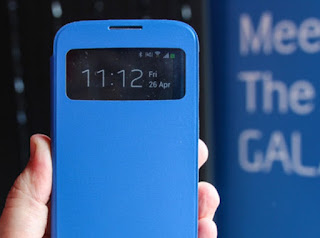
Samsung Galaxy S4 GT I9500 smartphone can now be updated with the XXUBMEA Jellybean 4.2.2 firmware. Though there is no official date on by Samsung will be rolling out this update worldwide, you can apply this update manually. Though there is no exact change log of this update, you can still go ahead and apply this update which we will be guiding you on how to apply. Before we proceed on to check on how you can apply with this release, proceed with the pre requisites first to the detailed instruction guide in the next page.
Quick Pre Requisites:
- All the data in your Samsung Galaxy S4 should be backed up with the help of below mentioned steps manually and not with the KIES PC Suite.
SMS – Use “SMS Backup & Restore app”,
Contacts – Sync with the Gmail application,
Call Log - Call Log and Restore
Images, Songs, Videos, Files – Copy to internal / External SD Card,
APN and MMS Settings – Note down from the path “Applications > Settings > Wireless and Network > Mobile Networks > Access Point Names”
- From the path “Settings > More > Development Options > USB debugging” enable the USB Debugging Mode.
- Minimum charge left in your phone is 30% or else there is a risk of device getting turned off in the middle of rooting process.
Disclaimer: Follow all the instructions mentioned in this article as if there is any damage caused due to not following instructions then we shall not be held liable or responsible. Just in case if you face any issues then we will try our level best to address the same.
Assuming that you are done with the above 3 pre requisites, you can now follow the list of instructions below for rooting your Galaxy S4.
Procedure to Update Galaxy S4 I9500 with XXUAMDL Jellybean 4.2.2 Firmware:
- Download the Jellybean 4.2.2 XXUBMEA Firmware Package and Odin from here to your computer. Once downloaded, extract both the files which you have downloaded in your computer. Open Odin in your computer.
- Turn Off your device so that it can be entered in the Download Mode. Download Mode in GALAXY S4 can be entered by first turning Off the device and then hold Volume Down Rocker Key + Menu Button and then Power ON the device. Once the device is booted and you see the Download Mode Green Robot, you can release the button combos.
- Connect your device to the computer with the help of original USB cable and then you will see that the ID : COM section will turn Yellow / Green, indicating that all the drivers are installed successfully.
- Click on “PDA” in odin to select the rooting tar file which will be there in the extracted folder to click on “Start” to start the process of rooting. Once the device is updated, the device will be rebooted automatically. It may take longer time than expected for booting the device. The whole process of firmware update might take anywhere between 10 -15 minutes depending upon various conditions.
- Don’t disconnect the device from computer till you see the home Lcd in your phone or the Language selection options.
Note: If the device gets into the boot loop sequence or say gets stuck in the welcome Lcd, just re insert the battery and re follow the above instructions so as to again follow the above mentioned instructions.
Do let us know in the comments section just in case if you face any issues in the process of firmware update in the comments section as we will try our level best to sort out the same. For all those who wishes to root their Samsung Galaxy S4 GT I9500 smartphones, we will be coming out with a separate tutorial which will help you root the device.
Thursday, September 18, 2014
Samsung Galaxy Attain SCH R920 factory data reset
| Samsung Galaxy Attain SCH-R920 factory data reset |
Performing factory data reset ( master reset or hard reset ) Samsung Galaxy Attain SCH R920 via Settings menu:
Press Home
select Menu
select Settings
select Privacy
select Factory data reset
select Reset phone
select Erase Everything
Warning! All data will be erased from device memory, including system and application data, settings and downloaded applications. Back up your important data. The device will restore to factory settings.
If your phone hangs or does not responding, Press and hold power key about 10 seconds. It will rebooting automatically. Or remove and re insert the battery and SIM Card.
Tuesday, September 16, 2014
Samsung galaxy S3 Wifi Not Working fix problem

Monday, September 15, 2014
How To Install XWUGML4 Android 4 3 JB Official Firmware on Galaxy S3 I9300 Guide
Samsung launches Android 4.3 Jelly Bean XWUGML4 official firmware update for the Galaxy S3 GT - I9300. The firmware update is launched in various countries including India, and also can be downloaded for manual updates. Galaxy S3 GT - I9300 comes with Android 4.0.4 ICS is then updated to Android 4.1.2 Jelly Bean and nows your chance to upgrade to Android 4.3 Jelly Bean.

Make sure you have stable internet connection on your computer.
Now download and install Samsung Kies on your computer.
Turn on your device (if it off) and then connect it to computer with USB cable.
Run Samsung Kies and wait for it to detect your device.
You should see a New Firmware Upgrade is available at Samsung Kies home Lcd.
Press the Firmware Upgrade button to proceed.
Follow on Lcd instruction and soon you will see your device running upgrade and reboot automatically. Once done, you can disconnect your device from computer.
Again! If you see “This is the latest firmware” in Samsung Kies, then your device yet to receive the latest update on Kies. Its good time to go for manual update instruction that located below.
Note: You can install any firmware listed below despite availability in other countries, except those which comes with carrier name.
[Please Note: After flashing this firmware you will lost any installed custom ROM including CM10.2, AOKP, Avatar,Beanstalk, Omni ROM, Slim ROM, Pac-Man, Paranoid Android, LiquidSmooth or Carbon
Android 4.3 Jelly Bean I9300XWUGML4 stock firmware available in both OTA and Kies update. However, if you can not get it from there then you can always blink I9300XWUGML4 Android 4.3 Jelly Bean firmware on Galaxy S3 GT - I9300 manual. We will discuss all the methods available updates. You should always try OTA or Kies method when the first and second method does not work then just try flashing manually.

Warning: This tutorial is only for Galaxy S3 GT-I9300. Don’t try this guide on any other Android device. Also, we are not responsible for any damage caused due to the instruction given in this page. Try this at your own risk. However, it is very unlikely that your device will be damaged if you follow all the instructions as it is which are mentioned in procedure.
Pre Requisites:
Though official firmware restore all existing data but we recommend to back up your data first before proceeding to avoid any uncomfortable situation such as bootloop fix.
1. Backup your device data. You can follow our ultimate backup guide.
2. Make sure your device have at least 60% battery power. You can install an app like Battery Notifier BT Free on your Android device to check it easily.
3. You already have USB Driver Installed for Galaxy S3 GT-I9300 in your PC. Download USB Drivers
4. Make sure USB Debugging is enabled otherwise you won’t able to transfer file between PC and Galaxy S3 GT-I9300.
Though official firmware restore all existing data but we recommend to back up your data first before proceeding to avoid any uncomfortable situation such as bootloop fix.
1. Backup your device data. You can follow our ultimate backup guide.
2. Make sure your device have at least 60% battery power. You can install an app like Battery Notifier BT Free on your Android device to check it easily.
3. You already have USB Driver Installed for Galaxy S3 GT-I9300 in your PC. Download USB Drivers
4. Make sure USB Debugging is enabled otherwise you won’t able to transfer file between PC and Galaxy S3 GT-I9300.
How To Update Galaxy S3 GT-I9300 via OTA
- First of all make sure you have stable internet connection (Wi-Fi or data network) on your device.
- Now, go to Android app drawer and then select Settings.
- Then locate About Device and tap on it.
- Next select Software update from About device Lcd.
- Then tap on Update option.
- You should see an update, press OK to download and install. (Remember, download using 3G or network data will incur additional charges to your phone bill!)
- Soon your device will reboot to complete the installation process.
How To Update Galaxy S3 GT-I9300 via Kies
Make sure you have stable internet connection on your computer.
Now download and install Samsung Kies on your computer.
Turn on your device (if it off) and then connect it to computer with USB cable.
Run Samsung Kies and wait for it to detect your device.
You should see a New Firmware Upgrade is available at Samsung Kies home Lcd.
Press the Firmware Upgrade button to proceed.
Follow on Lcd instruction and soon you will see your device running upgrade and reboot automatically. Once done, you can disconnect your device from computer.
Again! If you see “This is the latest firmware” in Samsung Kies, then your device yet to receive the latest update on Kies. Its good time to go for manual update instruction that located below.
Note: You can install any firmware listed below despite availability in other countries, except those which comes with carrier name.
I9300XWUGML4 Android 4.3 Jelly Bean Firmware Downloads
[Please Note: After flashing this firmware you will lost any installed custom ROM including CM10.2, AOKP, Avatar,Beanstalk, Omni ROM, Slim ROM, Pac-Man, Paranoid Android, LiquidSmooth or Carbon
How To Install I9300XWUGML4 Android 4.3 Jelly Bean On Galaxy S3 GT-I9300 Manually
- Download Odin v3.09.
- Extract Firmware zip file that you downloaded earlier from above link, you will get a .tar.md5 file and some other files (optional).
- Extract Odin zip file and you will get Odin3 v3.09.exe along with few other files.
- Power off your Android device. Wait 5-6 seconds for vibration to confirm complete switch off.
- Now, put the Galaxy S3 GT-I9300 in Download Mode by pressing and holding down the Home & Volume Down button together while pressing the Power button. A warning Lcd will come up; press Volume Up button to enter Download Mode.
- Now run Odin3 v3.09.exe (see Step 3) as an Administrator because Admin privileges is required to complete the process smoothly (only applicable Windows Vista and higher).
- Now connect your device to your PC using USB cable. An “Added!!” massage will appear in Odin’s message box. If you don’t get the same then you should try another USB port (try USB port located in back in your desktop PC). If that too don’t work then you should reinstall the driver. If you successfully see the “Added!!” message in Odin then you are ready to go in next step. You should also see COM port with a number in Yellow if you successfully added your device.
- Click the AP Button, and select that .tar.md5 file that you get in Step 2.
- In Odin window, make sure only Auto Reboot and F. Reset Time checkboxes are selected.
- Double check everything that we mentioned in Step 8 & Step 9 above. Now, once satisfied hit the START button to begin the flashing process.
- Once flashing completed, your Galaxy S3 GT-I9300 will restart and soon you will see a PASS message with green background in the left-most box at the very top of the Odin. You can now unplug the USB cable to disconnect your device from computer.
Fix Boot Loop Issue On Galaxy S3 GT-I9300
If Galaxy S3 GT-I9300 stuck at booting animation for more than 10 minutes after Step 11 then follow below instructions:
That’s it! Let us know about your latest Android 4.3 Jelly Bean experience.
- Go to recovery mode. To do so, press and hold the Volume Up, Home and Power buttons together.
- Now perform Wipe data/Factory Reset and Wipe Cache Partition task before selecting reboot system now function. In recovery mode use Volume keys to navigate between options and Power key to select the option.
That’s it! Let us know about your latest Android 4.3 Jelly Bean experience.
Friday, September 12, 2014
Samsung Galaxy S3 Tips and Tricks
How to Factory Reset Samsung Galaxy S3
Restoring the default settings or factory reset your Samsung Galaxy S3 will delete all your existing files. It is recommended to backup your important files on your computer before attempting to reset your device.
Step 1. On your HomeLcd, tap on MENU icon.
Step 2. Select "Settings", then scroll down and tap "Backup and reset" option.
Step 3. Then tap on “Factory Data Reset”.
Step 4. Read warning carefully before tapping the “Reset Device”.
ReadMore..
We have our own reasons why we factory reset our device. Maybe we want to delete all the files and restore the device to its original state. It could also be the device may be malfunctioning or so slow and it needs to be reset.
The steps below are the instructions on how to factory reset your Samsung Galaxy S3:
Step 1. On your HomeLcd, tap on MENU icon.
Step 2. Select "Settings", then scroll down and tap "Backup and reset" option.
Step 3. Then tap on “Factory Data Reset”.
Step 4. Read warning carefully before tapping the “Reset Device”.
Step 5. If you want to proceed in resetting your device, tap on “Delete All” to confirm the Hard Reset.
Now, you just need to wait while your device is resetting. It should reboot itself and you will have a new start on your Samsung Galaxy S3.
Now, you just need to wait while your device is resetting. It should reboot itself and you will have a new start on your Samsung Galaxy S3.
You may also use the shortcut method using the code: Enter *2767*3855# on your device.
If you want the Firmware Flash Download mode, just press and hold Volume Down + Home Button + Power On.
How to Increase Memory Space (Dropbox application) on Samsung Galaxy S3 From 2GB to 50GB
Everyone of us want to have a bigger memory space on our Phone (for our photos, videos, application and more). With Samsung Galaxy S3, you can upgrade your memory space from 2GB to 50GB on your Dropbox application. If you want to increase your memory, then just follow the steps below:
Step 1. Visit the Dropbox website.
Step 2. Sign in on your account. If you dont have an account, then you need to create one.
Step 3. Go to your "Inbox" and find the email that contains Claim your 48 GB of free Dropbox space!.
Step 4. Click on "Claim Space", and complete the Getting Started instrutions.
Step 5. You should receive a notification that you have acquired an additional space once you have completed the required steps.
All of us want to have a longer battery life on our phones. Well, Samsung S3 provides options that help you save battery power. By customizing these options and deactivating features in the background, you can use the device longer between charges:
1. Using your device, press and hold the home button and at the same time press and hold the power button on the side. Press and hold those two buttons simultaneously for couple of seconds. Go to your notification bar on top to see the captured Lcd. Of course, make sure that you’re on the Lcd that you wish to capture.
2. This one is simpler. Just swipe the side of your hand from left to right or vice versa to take a Lcdshot. To activate that hand motion, press on the Menu button on your device. Then go to Settings and select Motion. Scroll down to Hand Motion. Tick on the Palm Swipe to Capture motion to activate the said functionality.
Now you’re ready that snap!
How to Take a Photo with Samsung Galaxy S3 While Recording a Video
Samsung’s flagship and perhaps its best seller Smartphone, the Samsung Galaxy S3 has incredible features to brag. One of which is the ability to take a photo while recording a video. Check out these steps and discover what a piece of art you have there with your S3.
1. Take your S3 and open your camera app. It will let you choose between the standard camera shots or video footage. You can take a video either on a portrait or landscape mode.
2. Once you’ve switched to record a video, press on that red button to begin recording. And a camera button will appear next to the record/stop icon.
3. Now if you wish to take a photo in the middle of recording a video, just press on the camera icon. Notice that there is no sound but just a little flash and momentary change of color after taking the shot.
4. To check on the photos, press on stop button and press on that square icon with lines beside it to get to the gallery page of your device.
5. There’ll you see the video youve recorded and as well as the photos taken while on it.
How to Make Your Samsung Galaxy S3 a Wi-Fi Hotspot
Ever imagine how you can make your own Samsung Galaxy S3 a WiFi hotspot? Well, sure you can. This feature allows for your other devices to pick up your mobile hotspot settings on your Samsung Galaxy S3. This is more preferable when you’re in public trying to locate a WiFi connection. Check out these steps for easy, convenient and a money-saver internet experience.
1. In the Application list, select Settings.
7. Tap on Save.
8. Now, on another device, locate your device’s name and connect to your mobile network.
You can also restrict mobile network sharing to specified devices. Select Allowed device list, create a device list, and then select your device’s name to change the sharing mode to Only allowed devices.
How to Increase Memory Space (Dropbox application) on Samsung Galaxy S3 From 2GB to 50GB
Everyone of us want to have a bigger memory space on our Phone (for our photos, videos, application and more). With Samsung Galaxy S3, you can upgrade your memory space from 2GB to 50GB on your Dropbox application. If you want to increase your memory, then just follow the steps below:
Step 1. Visit the Dropbox website.
Step 2. Sign in on your account. If you dont have an account, then you need to create one.
Step 3. Go to your "Inbox" and find the email that contains Claim your 48 GB of free Dropbox space!.
Step 4. Click on "Claim Space", and complete the Getting Started instrutions.
Step 5. You should receive a notification that you have acquired an additional space once you have completed the required steps.
Step 6. You just need to restart your device and check the settings of the Dropbox app on your device. You should be able to see that the space increased to 50GB.
How to Import Contacts From Old Phone to New Phone (on iPhone, Samsung, HTC and Nokia)
How to Import Contacts From Old Phone to New Phone (on iPhone, Samsung, HTC and Nokia)
Contacts is very important for everyone of us. We cant connect to our friends without a contact number. If you have a new phone, saving contacts on the phone one by one is so hassle. But now, theres an easy way how to transfer or import your contacts from your old phone to your new phone.
Use your PC to transfer contacts to your new phone. This process is applicable in several phone brands, including iPhone, Samsung, HTC and Nokia.
You just need an Internet Connection on your PC, your old and new phone and their own USB cable.
If you are not prompted with a pop-up window to install the PC Companion, you can also download the PC Companion here.
How to Change Font Size and Style on Samsung Galaxy S3
Android phones running older version of OS can easily allow you to change its font size. However, changing its font style requires rooting of your device or installing 3rd party apps. Well the good news is, Samsung Galaxy S3 allows you to customize your phone’s font with just few taps. So if you think your S3’s font is way too serious to fit your personality, then you can change into a more light-hearted one. Check out these steps on how to change S3’s font size and style to suit your style.
To change the font size, follow these steps:
1. On your device, go to Settings menu by pulling down the Notification drawer.
2. Now you’re on the Settings menu, scroll down to Display and tap.
3. Under Font, tap on Font Size.
4. You’ll see five options (tiny, small, normal, large and huge) to choose from. Just choose from the list and you’ll immediately see the results within the Settings menu Lcd.
To change the font style, follow these steps:
1. Pull down the Notification drawer and tap on Settings icon.
2. Then scroll down to Display and tap.
3. Under Font section, tap on Font Style.
4. You’ll see four font style ( default font, Choco cooky, Helvetica S, Rosemary)
5. Choose the desired font style and tap on Yes to apply it. Take note that fonts on a web page will still be displayed as they always have.
6. Now if you wish to use other fonts, just tap on the tab Get fonts online at the bottom of the list for available font styles.
7. Once you tap that tab you’ll be redirected to Google Play Store where you can download additional fonts for S3. Some are free and others cost on average of $0.99.
How to Reduce the Battery Consumption on Samsung S3
Use your PC to transfer contacts to your new phone. This process is applicable in several phone brands, including iPhone, Samsung, HTC and Nokia.
You just need an Internet Connection on your PC, your old and new phone and their own USB cable.
Then you need to install the PC Companion program. This is a free application and the installation files are already saved on your new phone. This program can also be used in updating your phone software.
Please note that if you are using the Microsoft Windows 7 operating system on your PC, make sure that the AutoPlay setting is enabled.
To check your settings:
Click Start > Control Panel, then type "autoplay" on the search box. Click the AutoPlay, and mark the check box Use AutoPlay for all media and devices.
Installing the PC Companion:
Installing the PC Companion:
- Turn on your new Phone and connect it to your PC.
- On your new Phone, tap "Install" to install PC Companion on the PC.
- On your computer, if a pop-up window that appears notifies you about available PC Software, select Run Startme.exe.
- Then click Install to start the installation and then follow the instructions to complete the installation.
If you are not prompted with a pop-up window to install the PC Companion, you can also download the PC Companion here.
Transferring your contacts to your new phone:
- Make sure that PC Companion is installed on your PC.
- Open the PC Companion application on your PC.
- Then click Contacts Setup and follow the instructions to transfer your contacts.
How to Change Font Size and Style on Samsung Galaxy S3
Android phones running older version of OS can easily allow you to change its font size. However, changing its font style requires rooting of your device or installing 3rd party apps. Well the good news is, Samsung Galaxy S3 allows you to customize your phone’s font with just few taps. So if you think your S3’s font is way too serious to fit your personality, then you can change into a more light-hearted one. Check out these steps on how to change S3’s font size and style to suit your style.
To change the font size, follow these steps:
1. On your device, go to Settings menu by pulling down the Notification drawer.
2. Now you’re on the Settings menu, scroll down to Display and tap.
3. Under Font, tap on Font Size.
4. You’ll see five options (tiny, small, normal, large and huge) to choose from. Just choose from the list and you’ll immediately see the results within the Settings menu Lcd.
To change the font style, follow these steps:
1. Pull down the Notification drawer and tap on Settings icon.
2. Then scroll down to Display and tap.
3. Under Font section, tap on Font Style.
4. You’ll see four font style ( default font, Choco cooky, Helvetica S, Rosemary)
5. Choose the desired font style and tap on Yes to apply it. Take note that fonts on a web page will still be displayed as they always have.
6. Now if you wish to use other fonts, just tap on the tab Get fonts online at the bottom of the list for available font styles.
7. Once you tap that tab you’ll be redirected to Google Play Store where you can download additional fonts for S3. Some are free and others cost on average of $0.99.
How to Reduce the Battery Consumption on Samsung S3
All of us want to have a longer battery life on our phones. Well, Samsung S3 provides options that help you save battery power. By customizing these options and deactivating features in the background, you can use the device longer between charges:
To reduce the battery consumption, follow these simple tips:
● Switch to Sleep mode by pressing the Power key when you are not using your device. Close unnecessary applications with the task manager.
● Deactivate the Bluetooth feature.
● Deactivate the Wi-Fi feature when not in use.
● Deactivate auto-syncing of applications.
● Decrease the backlight time.
● Decrease the brightness of the display.
How to Disable Face Tag on Samsung Galaxy S3
● You need to Activate Power saving mode.
● Switch to Sleep mode by pressing the Power key when you are not using your device. Close unnecessary applications with the task manager.
● Deactivate the Bluetooth feature.
● Deactivate the Wi-Fi feature when not in use.
● Deactivate auto-syncing of applications.
● Decrease the backlight time.
● Decrease the brightness of the display.
How to Disable Face Tag on Samsung Galaxy S3
Samsung Galaxy S3 have a feature called the Face Tag which lets you tag your friends on a photo by tapping the yellow boxes over their faces. Yes, it works more like the usual Facebook photo tagging. However, this app is sometimes distracting to look at whenever you view a photo because of the yellow boxes. Now here’s how you can ditch those boxes for a neater photo viewing.
1. Open the Gallery application and select a photo to view.
2. Press on the Menu key and list of options will pop up. Then select Face tag
3. A Face tag switch will appear. Click on the “Off” radio button.
There you go! Hello to a yellow-box free photo. You now have disabled the Face tag app.
How to Take a Screenshot on Samsung Galaxy S3
1. Open the Gallery application and select a photo to view.
2. Press on the Menu key and list of options will pop up. Then select Face tag
3. A Face tag switch will appear. Click on the “Off” radio button.
There you go! Hello to a yellow-box free photo. You now have disabled the Face tag app.
How to Take a Screenshot on Samsung Galaxy S3
Posting a Lcdshot of text thread on Facebook is viral these days. Most of the time, it’s meant for a good laugh. Well, there are actually two ways on how you can capture a Lcdshot of your Galaxy S3. Here are ways on how you can do it.
1. Using your device, press and hold the home button and at the same time press and hold the power button on the side. Press and hold those two buttons simultaneously for couple of seconds. Go to your notification bar on top to see the captured Lcd. Of course, make sure that you’re on the Lcd that you wish to capture.
2. This one is simpler. Just swipe the side of your hand from left to right or vice versa to take a Lcdshot. To activate that hand motion, press on the Menu button on your device. Then go to Settings and select Motion. Scroll down to Hand Motion. Tick on the Palm Swipe to Capture motion to activate the said functionality.
Now you’re ready that snap!
How to Take a Photo with Samsung Galaxy S3 While Recording a Video
Samsung’s flagship and perhaps its best seller Smartphone, the Samsung Galaxy S3 has incredible features to brag. One of which is the ability to take a photo while recording a video. Check out these steps and discover what a piece of art you have there with your S3.
1. Take your S3 and open your camera app. It will let you choose between the standard camera shots or video footage. You can take a video either on a portrait or landscape mode.
2. Once you’ve switched to record a video, press on that red button to begin recording. And a camera button will appear next to the record/stop icon.
3. Now if you wish to take a photo in the middle of recording a video, just press on the camera icon. Notice that there is no sound but just a little flash and momentary change of color after taking the shot.
4. To check on the photos, press on stop button and press on that square icon with lines beside it to get to the gallery page of your device.
5. There’ll you see the video youve recorded and as well as the photos taken while on it.
How to Make Your Samsung Galaxy S3 a Wi-Fi Hotspot
Ever imagine how you can make your own Samsung Galaxy S3 a WiFi hotspot? Well, sure you can. This feature allows for your other devices to pick up your mobile hotspot settings on your Samsung Galaxy S3. This is more preferable when you’re in public trying to locate a WiFi connection. Check out these steps for easy, convenient and a money-saver internet experience.
1. In the Application list, select Settings.
2. Then tap on More Settings.
3. Choose Tethering and portable hotspot.
4. Tap on Portable Wi-Fi hotspot
3. Choose Tethering and portable hotspot.
4. Tap on Portable Wi-Fi hotspot
5. Then drag the Portable Wi-Fi hotspot switch to the right to activate mobile network sharing via Wi-Fi
6. Select Configure to configure network settings to use your device as an AP.
7. Tap on Save.
8. Now, on another device, locate your device’s name and connect to your mobile network.
You can also restrict mobile network sharing to specified devices. Select Allowed device list, create a device list, and then select your device’s name to change the sharing mode to Only allowed devices.
Subscribe to:
Posts (Atom)
