Showing posts with label sony. Show all posts

Friday, October 17, 2014

How to Hard Reset Sony Xperia Z2

We have our own reasons why we hard reset our device. Maybe we want to delete all the files and restore the device to its original state. It could also be the device may be malfunctioning or so slow and it needs to be reset.

Restoring the default settings or factory reset your Sony Xperia Z2 will delete all your existing files. It is recommended to backup your important files on your computer before attempting to reset your device.

Use this method if your device is frozen or unable to solve by Factory Reset.

Hard Reset:
ReadMore..

Wednesday, October 1, 2014

How to transfer Contacts SMS Photos Files from Android Phone to Sony Xperia Mobile

 Mobiles phones have become the lifeline in everyone’s life these days and some valuable data is being stored in everyone’s device ranging from Credit and Debit Cards details, Photos and Videos, Documents, Calendar, Bookmarks and Notes. The importance of Cloud Back-up is also increasing because people do not want to loose any data from their devices. And in case you have got a new Sony Xperia device you can transfer all the above mentioned data into it from your earlier Android or iOS Apple device.

And here we are going to show you a simple way to transfer your all important data from your Android or iOS device to Sony Xperia Smartphones:

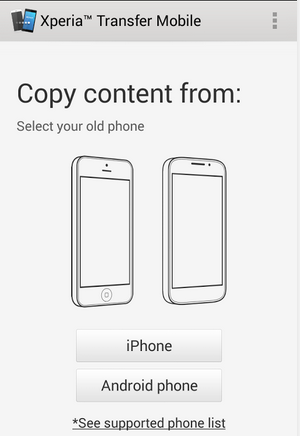
You have to install a free APP called Xperia Transfer Mobile on both your devices the new Xperia Smartphone and also the OLD phone from which you want to transfer the data (Play Store Link)
With this app you can transfer Contacts, Calendar, SMS, MMS, Bookmarks, Notes, Photos, Music, Videos and Apps (only from iPhone)
After installing the app on both devices you have to Pair the devices together either by entering the PIN and in case you have NFC you can tap both the devices together to initiate the transfer process.
Select the Old Device – iPhone or Android phone

http://android-developers-officials.blogspot.com/2014/04/how-to-transfer-contacts-sms-photos.html

Select the Data which you want to transfer to your new Xperia device like the Bookmarks, Photo,   Music, Video and then Start Transfer.


http://android-developers-officials.blogspot.com/2014/04/how-to-transfer-contacts-sms-photos.html


In case of Apple iPhone you have to connect your devices with the wire provided by Sony in the Xperia box or you can even choose to transfer it through WiFi like in android devices.
In case of Android devices WiFi Direct needs to be activated to start the transfer

Note: Data which is present on your device will be transferred and the data synced with online services will not be transferred with this App.

Devices Supported:

Old Phone: Android 4.0 and later, iOS 4.0 and later
New Phone: Android Jelly Bean 4.3 and later

Make sure that you recheck that all your important data is transferred properly to your new Xperia Smartphone before deleting the data from your old phone as sometimes some data will not be transferred due to certain restrictions and errors.

In case you want to transfer any data between any phone and your Xperia device you can use this app to transfer stuff like Videos, Music etc faster than through Bluetooth, but the only problem is that you cannot select any photos or videos separately and all the photos and videos will be sent.
ReadMore..

Friday, September 19, 2014

How to Start the Smart Connect Application on Sony Xperia Z1

Wouldnt it be nice if youre phone automatically plays your song list right when you step in your car? Or what about letting you show your whole day agenda the moment you arrive at your work table between 8-9am? These are just examples on how Smart Connect app works. With this app, you can set an event to happen on your device at certain times or what will happen when you connect/disconnect accessories like headset or charger. Hereshow to use it.

1. On your devices home Lcd, tap on .
2. Look for Smart Connect and tap on it.
3. If its your first time opening the said app, tap on OK to close the introduction Lcd.
4. Go to Events tab and tap on the plus (+) icon.
5. Type in a name for the event and tap on Create.
6. Under When, add either an accessory ( like what happens on your device when you connect your headset) or a time interval or could be both.
7. Under Do This, add what you want to happen on your device.
8. Under At the End, add what you want to happen to your device when you disconnect your accessory or when the time interval ends.
9. Press on Back Arrow  to save the event.

ReadMore..

Tuesday, September 16, 2014

How to Screen Mirror Sony Xperia Z to Show the Screen on a TV

The Screen Mirroring will allow you to show the Lcd of your device on a TV or other large display without using a cable connections. It uses the Wi-Fi Direct technology that create a wireless connection between two devices. You can also use this feature to listen to music from your phone via the TVs speakers.

How to mirror the Lcd of your phone on a TV:

1. First you need to turn on the Lcd mirroring function on your TV. Just follow the instructions in the User Guide of your TV.
2. From your Home Lcd, tap on the Menu icon
3. Select on Settings, and tap Xperia™.
4. Choose Screen mirroring.
5. Tap to turn on the Screen mirroring and select a device.

Note: The TV that you want to connect with must support Lcd mirroring for the above described functionality to work. If it does not support, then you can try the Throw feature. Go to Settings > Throw feature.
ReadMore..

Friday, September 12, 2014

Sony Ericsson Spiro W100i LCD Screen Display Problem Repair Solution


Sony
Repair hints on Sony Ericsson Spiro LCD Screen Display Problems.
1. Check the LCD Screen Module, have a new LCD Lcd replacement if damaged.
2. Check the LCD flex ribbon cable wire, replace if damaged.
3. Check the Flex Pin Connectors, clean if oxidized, resolder and replace if necessary.
4. Check the upper keypad PCB board. Replaced if damaged.
5. If the above procedures wont fix the problem, re-hot or rework the CPU IC.
ReadMore..

Thursday, September 11, 2014

How to Transfer Files Using Media Transfer Mode Via Wi Fi on Sony Xperia Z1

Transferring files on your device is made easy by using the Media Transfer Mode. You can easily transfer files between your device and other MTP compatible devices such as computer, using a Wi-Fi connection. But before you can transfer files wirelessly, you will need to pair both devices.

Note: You will need a Wi-Fi enabled devices that supports Media transfer such as a computer running Microsoft, Windows Vista or Windows 7.

To pair your device with the computer:

1. Check if the media transfer mode of your device is enabled. It is normally enabled by default.
2. Using the USB cable, connect your device to a computer.
3. On your computer, once the name of your device appear, click on Network Configuration and just follow the steps on how to pair the computer.
4. After pairing, safely disconnect your device from your computer.

These steps will work only on Windows 7 OS and the computer is connected to the Wi-Fi Access point via network cable.

To connect paired devices wirelessly in Media Transfer Mode:

1. First things first, check if the media transfer mode is enabled.
2. On your Home Lcd, tap on the .
3. Select Settings > Xperia > USB connectivity.
4. Then tap the paired device that you want to connect to under Trusted devices.
5. Tap connect.

If you want to disconnect, just tap on the paired device and tap Disconnect.

If you want to remove the paired device, tap on the paired device you want to remove and select Forget.
ReadMore..

Saturday, September 6, 2014

Sony Ericsson Solution pack


Sony Ericsson Hardware Solution pack Download,
if you check it much give few comments about this so that others can learn form your comments also.
If you have any other Questions please do not hesitate to share with me.
ReadMore..

Thursday, August 21, 2014

How to Install Android 4 4 2 KitKat based AOKP ROM on Sony Xperia Z

Google has just rolled out the latest Android 4.4.2 firmware for many KitKat Nexus devices. 4.4.2 Official KitKat is mostly AOSP release without much adjustment. If you want to enjoy a KitKat customized Android 4.4.2 on Sony Xperia Z then flash or install a custom Romans AOKP (Android Open Kang Project) The latest version of AOKP launched recently based on Android 4.4.2 KitKat and fully support Sony Xperia Z. Sony Xperia Z comes with impressive hardware spec that makes it able to run Android 4.4.2 KitKat smoothly. Continue reading this guide to learn how to Install Android 4.4.2 Custom ROM AOKP KitKat based Sony Xperia Z.


Some cool android 4.4.2 kitkat features youll enjoy are recording screen, press to pay (google wallet for all people), non nfc nfc emulation for devices, 14% less memory usage, cloud printing from the gallery, Google is launching a new home , trimmed core system processes, efficient and responsive apps on all devices, all new tool procstats details memory use, immersive full-screen mode, change the resolution for smooth playback of media, businesses have a local phone dialer detection, and many Quickoffice redesign again. Please note, this is a very early build and you should expect some bugs in it. All bugs and issues are expected to remain as progress toward a better build.

Warning! This tutorial is only for sony xperia z. Don t try this guide on any other android device. Also, we are not responsible for any damage caused due to instructions given this page. Try this in your factory own risk. However, it is highly unlikely that your device will be in a state of disrepair if you follow all the instructions as it is mentioned in the procedure.


Pre Requisites:

1. Backup your device data.
2. Make sure your device have at least 60% battery power. You can install an app like Battery Notifier BT Free on your Android device to check it easily.
3. You already have USB Driver Installed for Sony Xperia Z in your PC. Download USB Drivers
4. Make sure USB Debugging is enabled otherwise you won’t able to transfer file between PC and Sony Xperia Z.
5. Your device have latest CWM version 6.0.4.4 and up or TWRP 2.6.1 and up installed.
If you done everything that we mentioned above then you are ready to follow step-by-step guide on how to install Android 4.4.2 KitKat based AOKPROM on Sony Xperia Z.


File Required(Download by clicking on it)
How to Install Android 4.4.2 KitKat based AOKP ROM on Sony Xperia Z
  1. Connect your device to PC using USB cable and then copy downloaded files to the SD card of your device.Important: Don’t extract any files.
  2. Disconnect USB and then turn off your Sony Xperia Z.
  3. Now, boot into recovery mode. To do so, reboot phone and press Volume Up button few times while booting. [in recovery use volume buttons to scroll and Power button to select].
  4. Perform a Nandroid backup of your existing ROM that you can restore later if this new ROM not work or you want to go back into your previous ROM. To perform a backup, select Backup and Restore, then on the next screen, select Backup again. Go back to main recovery menu after backup is complete.
  5. Now, perform data wiping task. To do so, select wipe data/factory reset, then select Yes on next screen to confirm your action. Wait few minutes till the data wipe is complete. Now come back to CWM recovery main menu. Select wipe cache partition and after wiping process done, select Wipe Dalvik Cache under advanceoption to perform Dalvik cache wiping.
  6. Select install zip from sdcard, then select choose zip from sdcard. Now, locate the AOKP ROM Zip file that you copied earlier in Step 1 and select it by pressing Power button. Confirm installation by selecting Yes – Install _.zip on the next screen. The ROM installation will begin.
  7. Once the ROM installation process end, repeat the step 6 but choose the gapps-kk-20131119.zip file instead of ROM zip to install the Google apps package.
  8. When installation is completed, go back to the main recovery menu and select reboot system now to reboot your Sony Xperia Z and boot up into rooted Android 4.4.2 KitKat ROM AOKP. 
  9. Returning to Previous ROM: To go back to your previous ROM, boot into recovery, select backup and restore then restore your previous ROM by selecting it from the list.
Congrats! Android 4.4.2 KitKat firmware based custom ROM AOKP is now installed and running on your Sony Xperia Z. [Note: Root is turned off by default in CM derived ROMs, you must enable developer settings first (tap the build number 8 times under about device), then enable root under Developer Settings]
ReadMore..

Sony Ericsson Xperia Active ST17i Factory Data Reset

Sony Ericsson Xperia Active ST17i Factory Data Reset - If you are an energetic individual that enjoys outside activities, you’ll contemplate getting this Sony Ericsson Xperia Active ST17i. Sure, this telephone is intended specially along with mud proof and waterproof therefore you don’t need to be compelled to worry relating to the actual gizmo whereas performing all of your activities. moreover, you can utilize the touchscreen even once your fingers are wet.
SonyEricssonXperiaActiveST17i_thumb
This smartphone is power-driven by Qualcomm MSM8255 flower one rate processor and 512 MB RAM. whereas to the package deal, it uses golem OS version 2. 3 (Android Gingerbread). it is 3” screen show equipped along with semiconductor diode backlit liquid crystal show electrical phenomenon touchscreen and Bravia Mobile Engine. The actual show is supported along with 320 x 480 pixels resolution ; measuring method sensor ; Proximity sensor ; scratch resistant show ; Timescape UI ; multi-touch input technique ; and bit sensitive controls. For recording and pic shot, a 5 MP camera along with Geo Tagging, Face detection, optical device and semiconductor diode flash is linked upon the rear panel. whereas front facing VGA camera conjointly obtainable for video occupation.
Here are a few choices you can understand throughout this telephone : Wi-Fi ; Bluetooth version 2. 1 along with A2DP and EDR ; microUSB version 2. 0 ; preloaded Google applications (Google Mail, GTalk, YouTube, Google Lookup, Google Maps and a lot of) ; one GB internal memory (320 MB consumer accessible) and expandable external memory as much as thirty 2 GB (2GB added) ; GPS along with A-GPS assistance ; games ; document viewer ; Adobe flash 10. 1 assistance and further.
Sony Ericsson Xperia Active ST17i Factory Data Reset
You can reset your phone to its original settings (Factory Setting), with or without deleting all of your personal data. It is possible to reset the phone to the state it was in before you first turned it on. But before you perform a reset, make sure to back up any important data saved on your phone.
To reset the phone:
  • From you Home screen, tap
  • Find and tap Settings > Privacy
  • Tap Factory data reset
  • To erase not only internal storage but also other user data such as pictures and music, mark the Erase SD card checkbox.
  • Tap Reset phone
  • To confirm, tap Erase everything

ReadMore..

Wednesday, August 20, 2014

How to Hard Reset Sony Xperia Z1s Using Buttons

1. Switch off your device. If it is frozen, remove your battery and insert it again.

2. Keep the device turned off, then press and hold the Volume Up and Volume Down buttons.

3. Then press and hold the Power button (just keep on holding the volume buttons). Keeping those three button pressed, there should be a menu will appear on your phone.

4. Press the Volume Down button to navigate to the Recovery option. Press the Volume Up to select (if that doesnt work, use the Power button to select).

5. An Android logo will appear. Press and hold the Volume Down and Volume Up button together and the recovery menu should appear.

6. Use the Volume buttons to move to the Wipe data/Factory reset option and then press Power to select.

7. Use the Volume Down key to choose Yes and press the Power button again to select.
ReadMore..