Showing posts with label SMS. Show all posts
Showing posts with label SMS. Show all posts
Thursday, October 23, 2014
How to backup and Restore your SMS on Android Phones

In our days it’s good to have a copy for your information, never know when we have need a text messages from a friend or our boss received in our smart phone and deleted, when I searching in internet to find an application for Backup SMS on Android, I found one of the best application which make this. SMS Backup & Restore, is a free app available on Google play store and have a user-friendly interface with more options, I will share with you some option before we start the instruction for make backup and restore for our SMS messages on Android.
Features for SMS Backup & Restore:
- You can now backup your SMS Messages in one easily mod and a universal extension, XML format.
- It’s easy to choose a scheduled time to make automatically your backup for SMS in your phone everyday.
- For be an individual backup every time when you want, now you can choose the name of the file to backup to.
- Have a great Option to add and XSL style sheet to the XML file, this thing make it this file to be open easily with a browser web like Firefox or Internet Explorer.
- The Backup format not depends of which Android versions you use so the messages can be portable easily from one phone to another, Tested with v1.5 to v4.0.
- An option which permit to select the individual conversations to backup.
- Choose the format for the auto-generated file name.
- Function for Restore SMS Messages with a great option to select the backup file to be restored from the folder.
- View Messages in the backup files.
- Possibility to delete all SMS Messages on your Android Phone.
- Email a backup file.
- Option to delete existing backup files plus an option to delete old files automatically, after specified number of days.
- Import SMS messages from Windows Mobile, from Nokia and from Sony Ericsson.
- You can view and edit on your computer using MS excel the backup files imported from your android.(click here to see how) .
How to Backup SMS on Android.
- First go to access the Market icon on your Android device.
- On the search box of Market store application type SMS Backup and Restore, and then press on search button.
- When the results appear press “SMS Backup & Restore”, and install it.
- Now wait to finishing the installation of program and tap the “SMS Backup& Restore” icon on your Android phone to run it..
- Now a GUI interface will be displayed and go to press “Backup SMS Messages” Button.
- Enter file name and press on “OK” button.
- The application will start SMS Backup immediately the process on your android device.
- Press the “Close” button when SMS Backup is completed.
Note: This SMS backup file will be stored on your Micro SD card.
How to Restore SMS on Android with SMS Backup & Restore application
After SMS backup process you have the backup file and now you want to restore one or more SMS messages.
- First transfer the SMS backup file on your SD Card on your Android phone.
- Run the SMS Backup & Restore application and after the GUI application is displayed press Restore SMS Messages button.
- Chose a SMS backup file that want to restore and after press on Ok button.
- The application will start restoring the SMS messages on Android.
- After the restoring process is finished press “Close” button.
Now all your SMS messages are restored from your backup file.

Wednesday, October 1, 2014
How to transfer Contacts SMS Photos Files from Android Phone to Sony Xperia Mobile
Mobiles phones have become the lifeline in everyone’s life these days and some valuable data is being stored in everyone’s device ranging from Credit and Debit Cards details, Photos and Videos, Documents, Calendar, Bookmarks and Notes. The importance of Cloud Back-up is also increasing because people do not want to loose any data from their devices. And in case you have got a new Sony Xperia device you can transfer all the above mentioned data into it from your earlier Android or iOS Apple device.
And here we are going to show you a simple way to transfer your all important data from your Android or iOS device to Sony Xperia Smartphones:
You have to install a free APP called Xperia Transfer Mobile on both your devices the new Xperia Smartphone and also the OLD phone from which you want to transfer the data (Play Store Link)
With this app you can transfer Contacts, Calendar, SMS, MMS, Bookmarks, Notes, Photos, Music, Videos and Apps (only from iPhone)
After installing the app on both devices you have to Pair the devices together either by entering the PIN and in case you have NFC you can tap both the devices together to initiate the transfer process.
Select the Old Device – iPhone or Android phone
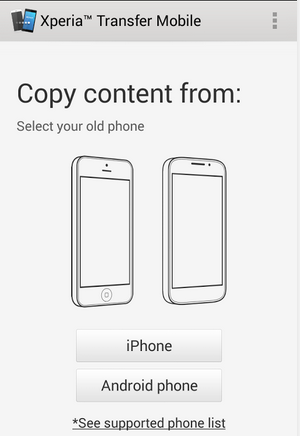

In case of Apple iPhone you have to connect your devices with the wire provided by Sony in the Xperia box or you can even choose to transfer it through WiFi like in android devices.
In case of Android devices WiFi Direct needs to be activated to start the transfer
Note: Data which is present on your device will be transferred and the data synced with online services will not be transferred with this App.
Devices Supported:
Old Phone: Android 4.0 and later, iOS 4.0 and later
New Phone: Android Jelly Bean 4.3 and later
Make sure that you recheck that all your important data is transferred properly to your new Xperia Smartphone before deleting the data from your old phone as sometimes some data will not be transferred due to certain restrictions and errors.
In case you want to transfer any data between any phone and your Xperia device you can use this app to transfer stuff like Videos, Music etc faster than through Bluetooth, but the only problem is that you cannot select any photos or videos separately and all the photos and videos will be sent.
And here we are going to show you a simple way to transfer your all important data from your Android or iOS device to Sony Xperia Smartphones:
You have to install a free APP called Xperia Transfer Mobile on both your devices the new Xperia Smartphone and also the OLD phone from which you want to transfer the data (Play Store Link)
With this app you can transfer Contacts, Calendar, SMS, MMS, Bookmarks, Notes, Photos, Music, Videos and Apps (only from iPhone)
After installing the app on both devices you have to Pair the devices together either by entering the PIN and in case you have NFC you can tap both the devices together to initiate the transfer process.
Select the Old Device – iPhone or Android phone
Select the Data which you want to transfer to your new Xperia device like the Bookmarks, Photo, Music, Video and then Start Transfer.
In case of Apple iPhone you have to connect your devices with the wire provided by Sony in the Xperia box or you can even choose to transfer it through WiFi like in android devices.
In case of Android devices WiFi Direct needs to be activated to start the transfer
Note: Data which is present on your device will be transferred and the data synced with online services will not be transferred with this App.
Devices Supported:
Old Phone: Android 4.0 and later, iOS 4.0 and later
New Phone: Android Jelly Bean 4.3 and later
Make sure that you recheck that all your important data is transferred properly to your new Xperia Smartphone before deleting the data from your old phone as sometimes some data will not be transferred due to certain restrictions and errors.
In case you want to transfer any data between any phone and your Xperia device you can use this app to transfer stuff like Videos, Music etc faster than through Bluetooth, but the only problem is that you cannot select any photos or videos separately and all the photos and videos will be sent.
Subscribe to:
Posts (Atom)
